
Part 2 of 7
Part 2: Pay the deposit
How to pay the deposit on your Kingtocar trip page with Thai PromptPay QR, a credit or debit card or Apple Pay, then see what is paid and what is left.
Key moments
- If you haven't paid yet, your trip link opens like this.
- At the top, it says Awaiting payment.
- This box shows the trip total, and the deposit to pay today.
- Tap the green button, Pay.
- On the payment page, the green box is what you pay today.
- Below it are the trip total, and the balance you pay on the travel day.
- Scroll down to choose how to pay.
- The top button is a credit or debit card. Apple Pay is here too.
- The bottom button is PromptPay QR, for Thai banking apps.
- This box says your card details stay safe.
- In this example, tap Credit or debit card, and pay.
- Once paid, you come back to your trip page, with a Booked banner.
- The black Save button keeps the trip in your account, to open it on any phone. It's optional.
- Scroll down. This line shows the deposit is paid.
- The next line is the cash you pay the driver.
- The black box is your four-digit code. It appears once you have paid.
- That's it. Your trip is booked.
 1:46
1:46 1:17
1:17 1:21
1:21 0:48
0:48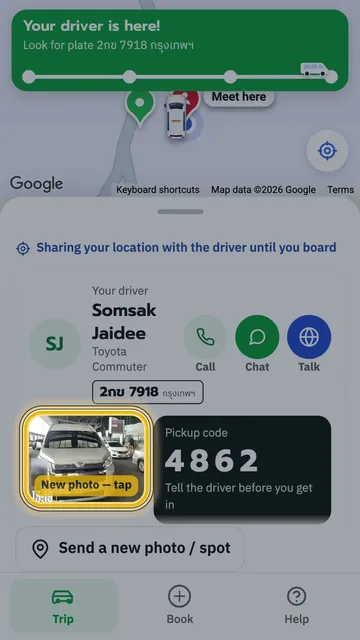 1:18
1:18 1:22
1:22