
How to book a private van online and use the KINGTOCAR app
Book a van with a driver, pay online, then use the same app on your travel day: meeting the driver at the airport, chatting with and calling the driver, and after the trip. Most steps have a screenshot, and the button names match the app.
- No sign-up, nothing to download
- English / ภาษาไทย
- 50% deposit or pay in full
- Free cancellation 3 or more days ahead


 Pay online · confirmed instantly
ShortcutsBook Bangkok → Pattaya in 6 steps
ShortcutsLanding at Suvarnabhumi: 5 steps
The screens on this page use sample data, not real customers. Prices and times in the pictures are only examples. The red ring marks what to look at or tap.
Before you travel: book and pay
Open the booking app
For: Everyone, the first time
Go to kingtocar.com and tap the gold Book online button, or Book in the middle of the bottom bar.
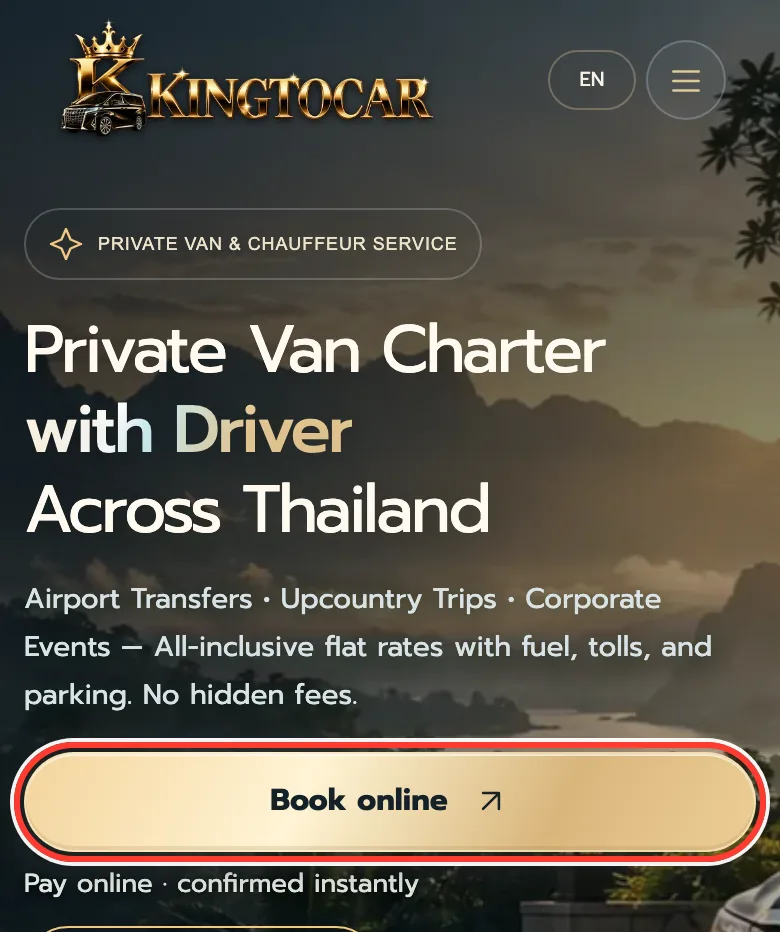
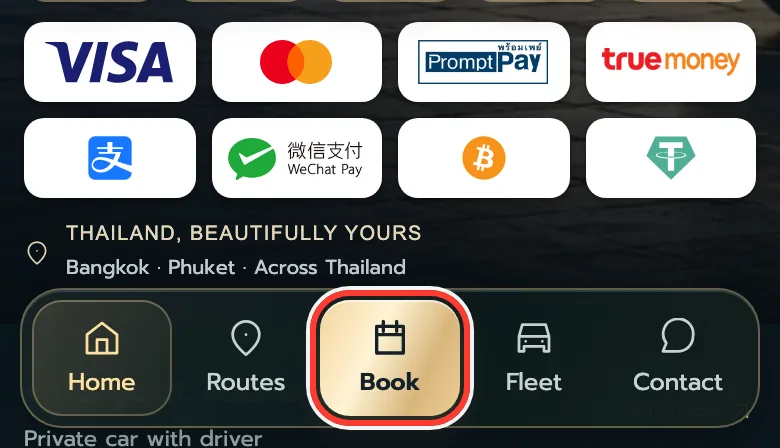
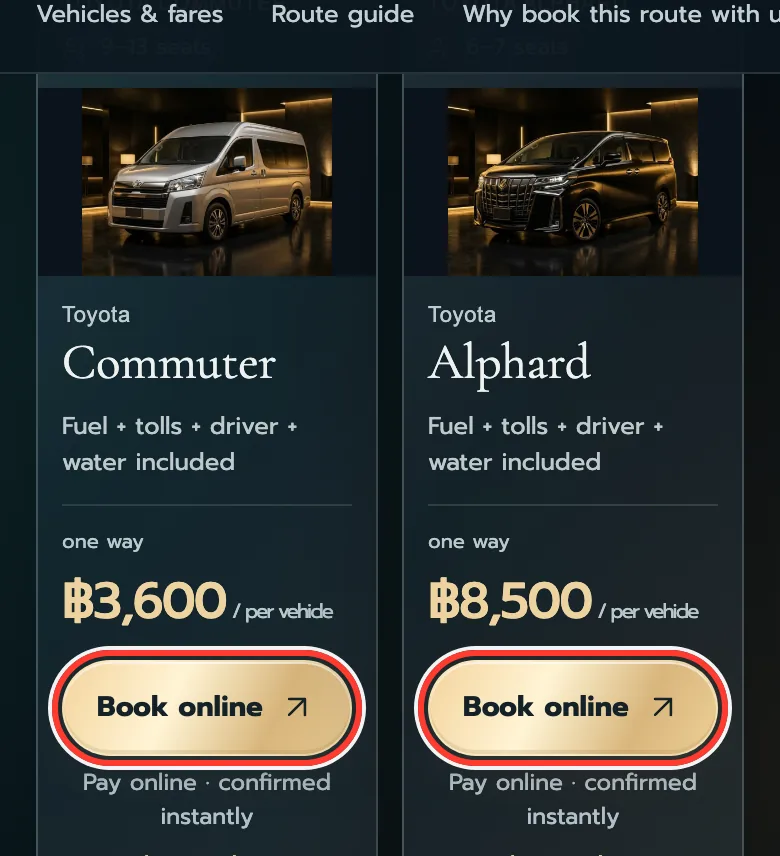
On a route page, such as Pattaya? Tap Book online on a van’s price card. The app fills in the route and the van for you.
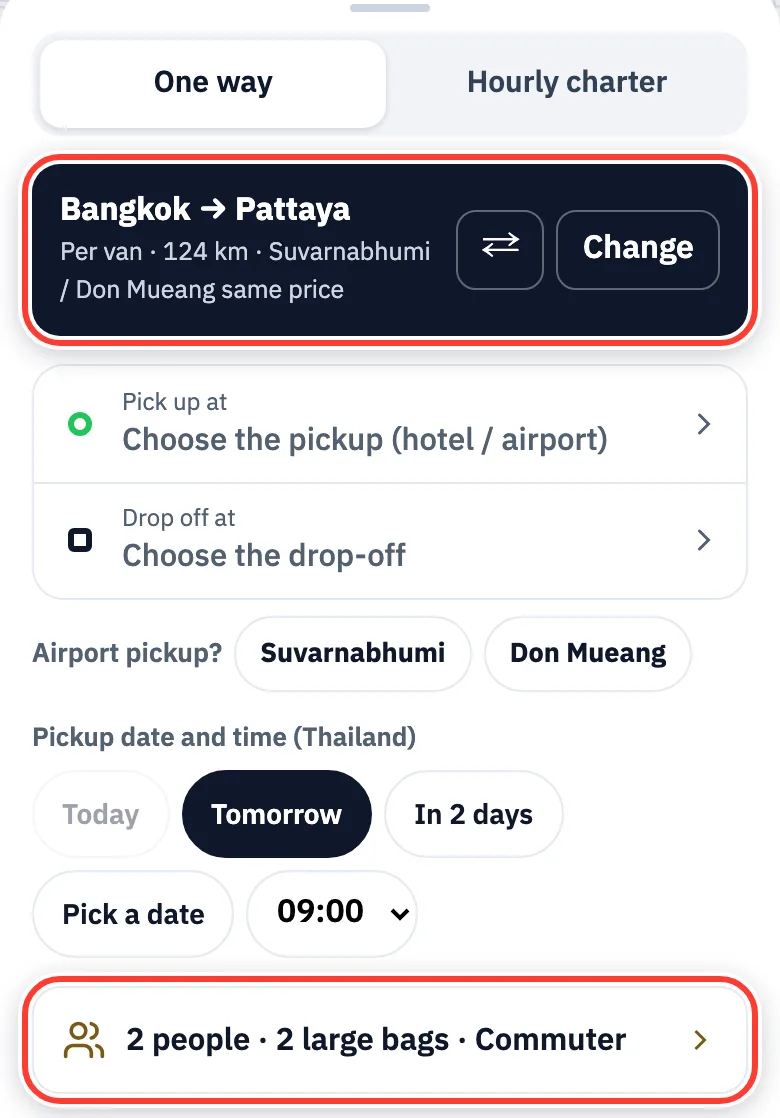
The app has 3 tabs at the bottom: Trip, Book and Help. The first time, it opens on Book.
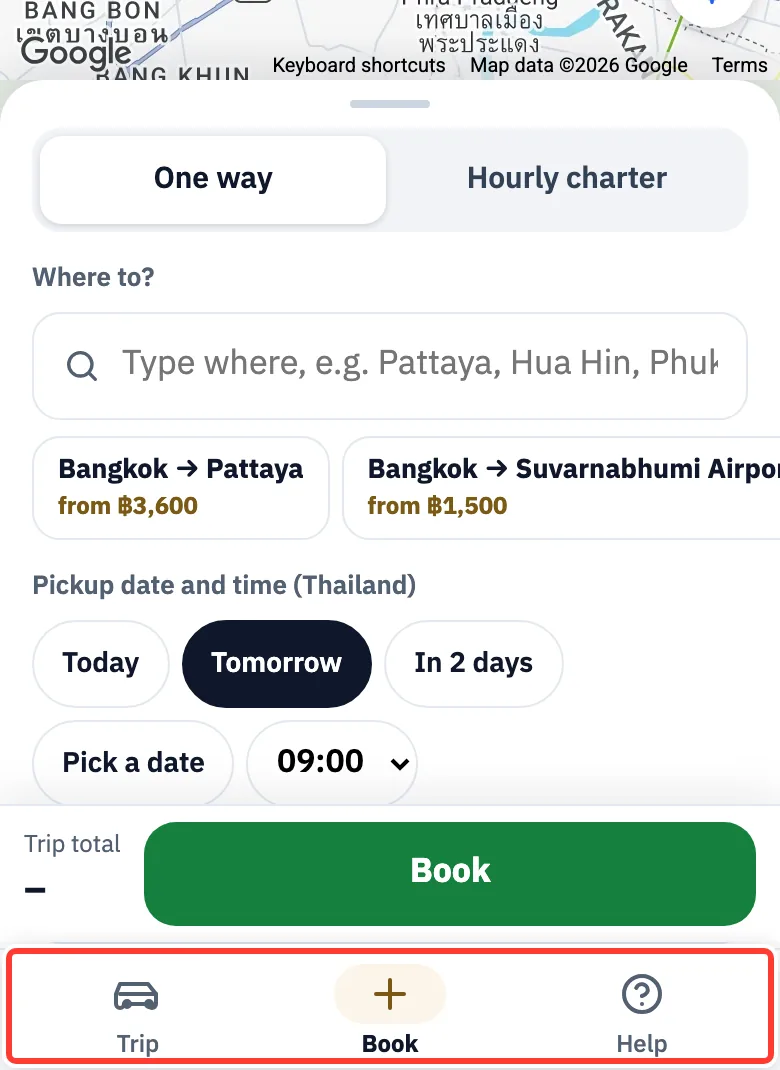
The app is in Thai and English. There is no sign-up and nothing to download: it opens in your browser. Other website languages open the app in English.
↑ Back to contentsChoose the kind of trip
For: Every booking
Going from A to B, e.g. airport → hotel? Tap One way.
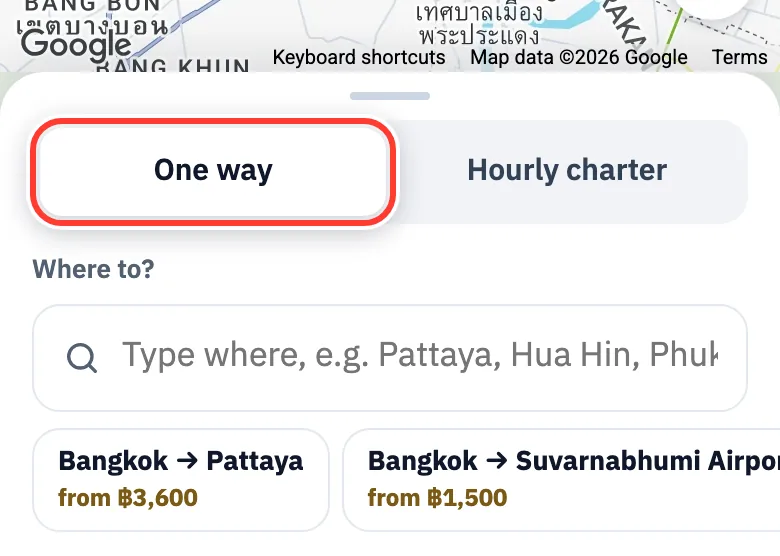
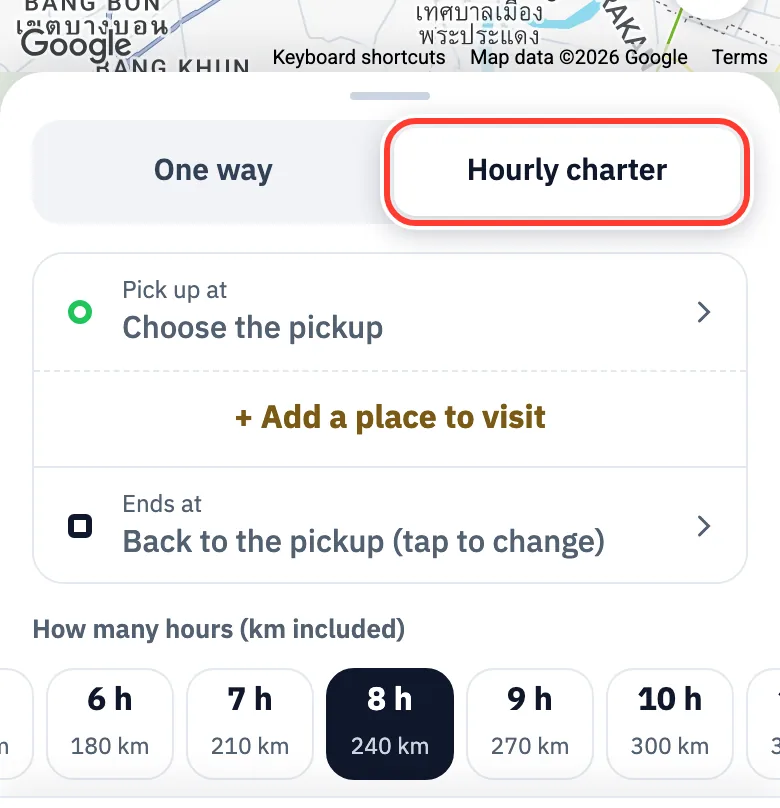
Want the van with you for several hours, visiting several places? Tap Hourly charter.
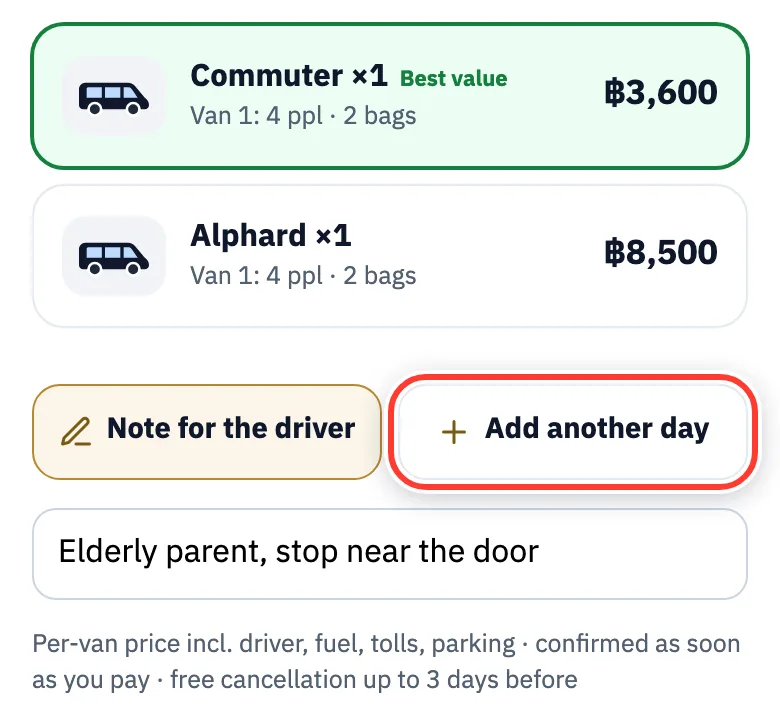
Travelling on several days? Fill in day 1, then tap Add another day near the bottom (up to 14 days).
Tap Day 1, Day 2 at the top to switch days. Each day can be one way or hourly. Don’t need a day? Tap Remove this day.
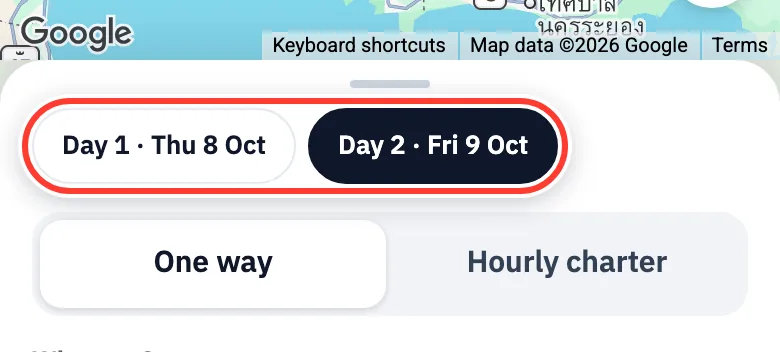
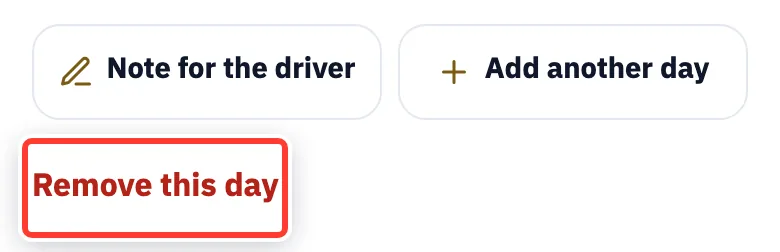
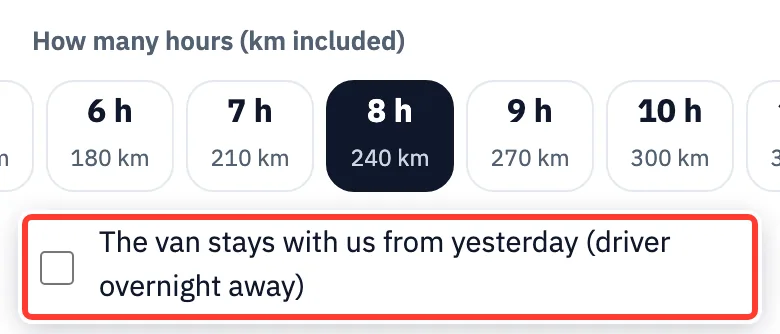
From day 2, on an hourly day: if the van and driver stayed overnight with you outside Bangkok (for example in Pattaya), tick The van stays with us from yesterday. The price then leaves out the van driving out from Bangkok that morning.
Example, Pattaya and back on another day: day 1 Bangkok → Pattaya, tap Add another day, then day 2 Pattaya → Bangkok.
↑ Back to contentsWhere to, pickup and drop-off
For: One-way bookings and airport arrivals
In Where to? type the place, e.g. Pattaya, or tap a popular route.
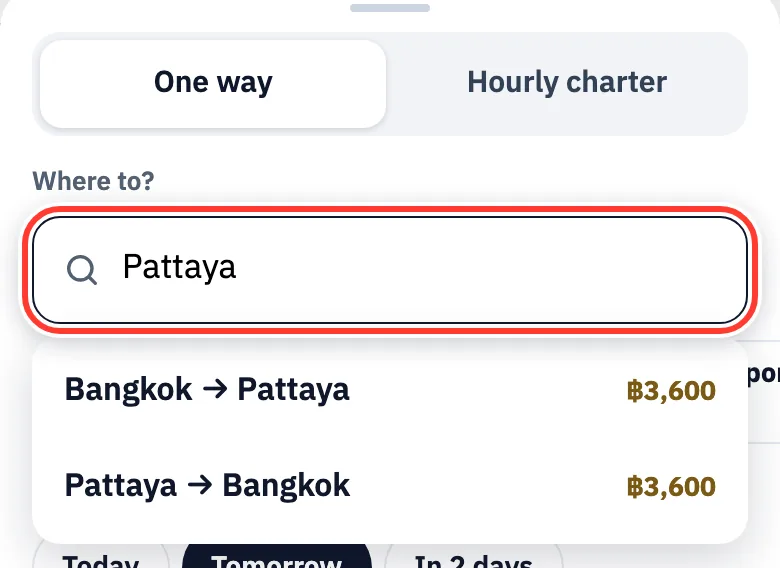
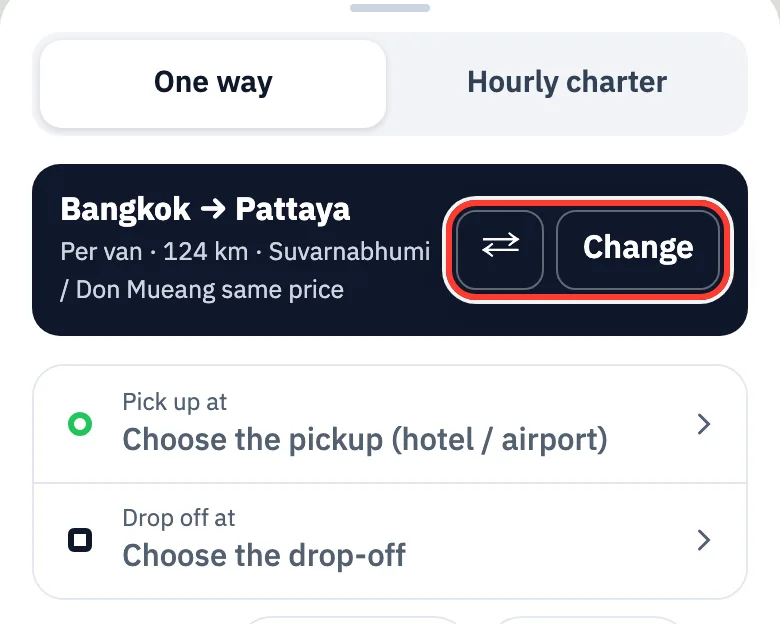
The price for the whole van shows at once. ⇄ swaps the start and the end, Change picks another route.
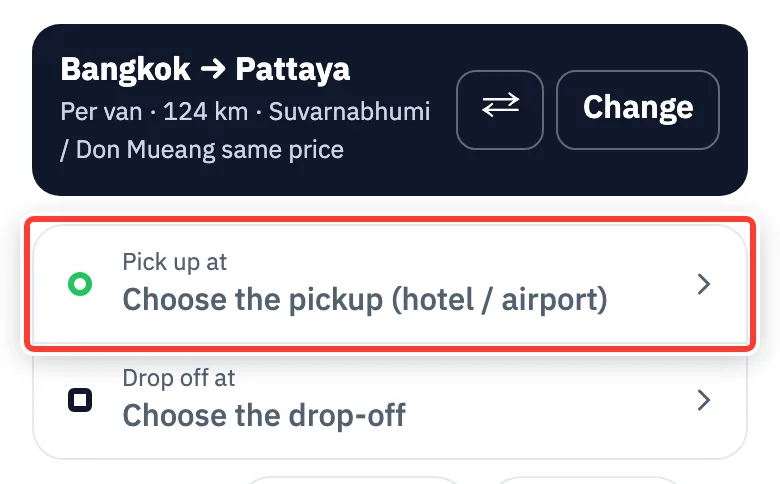
Pickup from home or a hotel: tap Pick up at, type the address or the hotel, and choose it from the list.
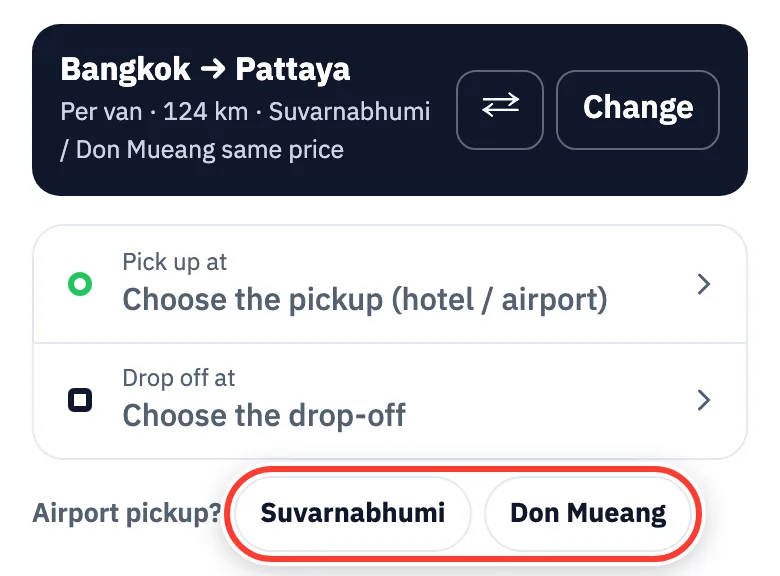
Arriving by plane? Tap Suvarnabhumi or Don Mueang (Phuket: Phuket Airport).
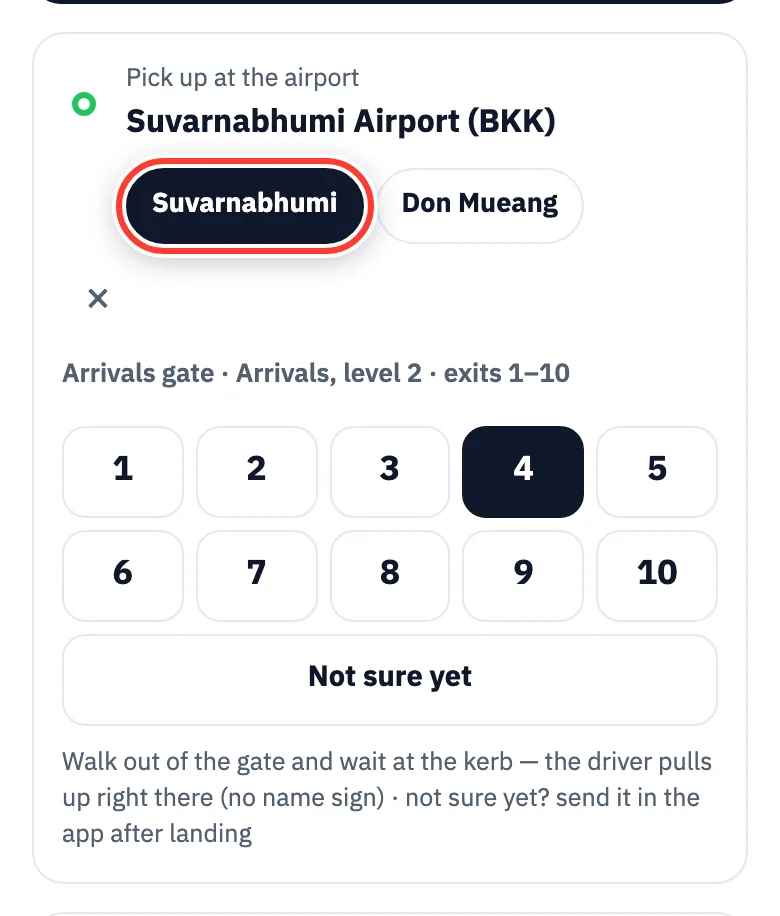
Suvarnabhumi: choose the exit you will come out of (arrivals, level 2, exits 1–10).
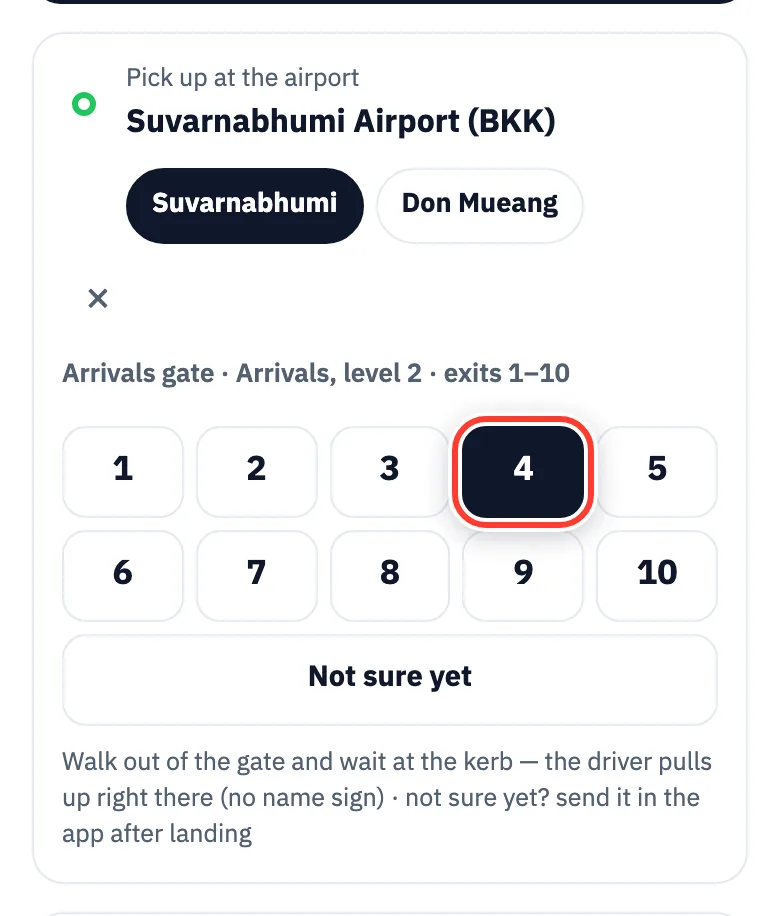
Don Mueang: choose Terminal 1 (international) or Terminal 2 (domestic), then the exit (arrivals, level 1).
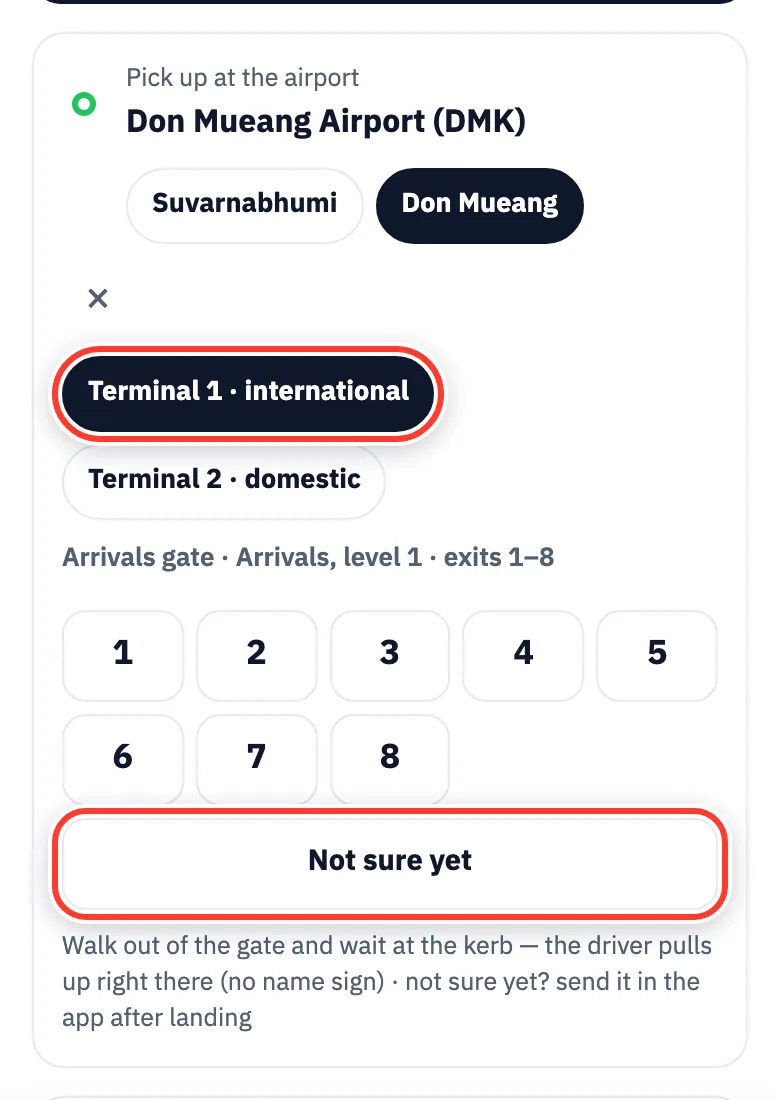
Not sure which exit? Tap Not sure yet and send it from the app after landing.
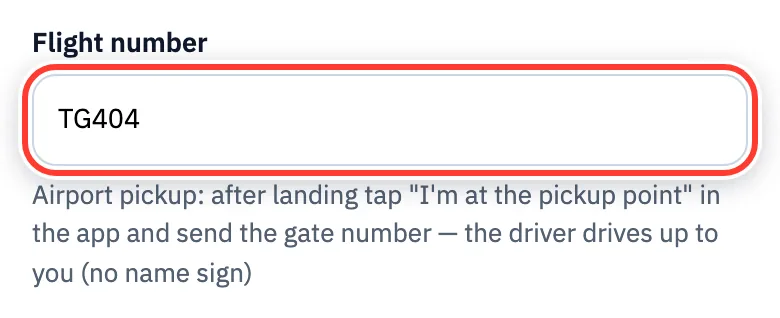
Type your Flight number, e.g. TG404. Our team checks the real landing time, and there is no waiting charge for ordinary delays.
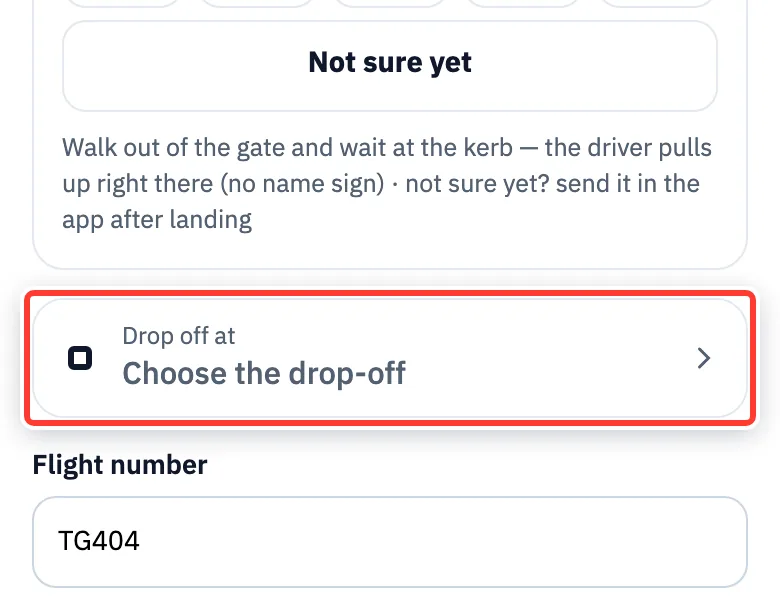
Tap Drop off at, type your hotel in the search box and choose it from the list.
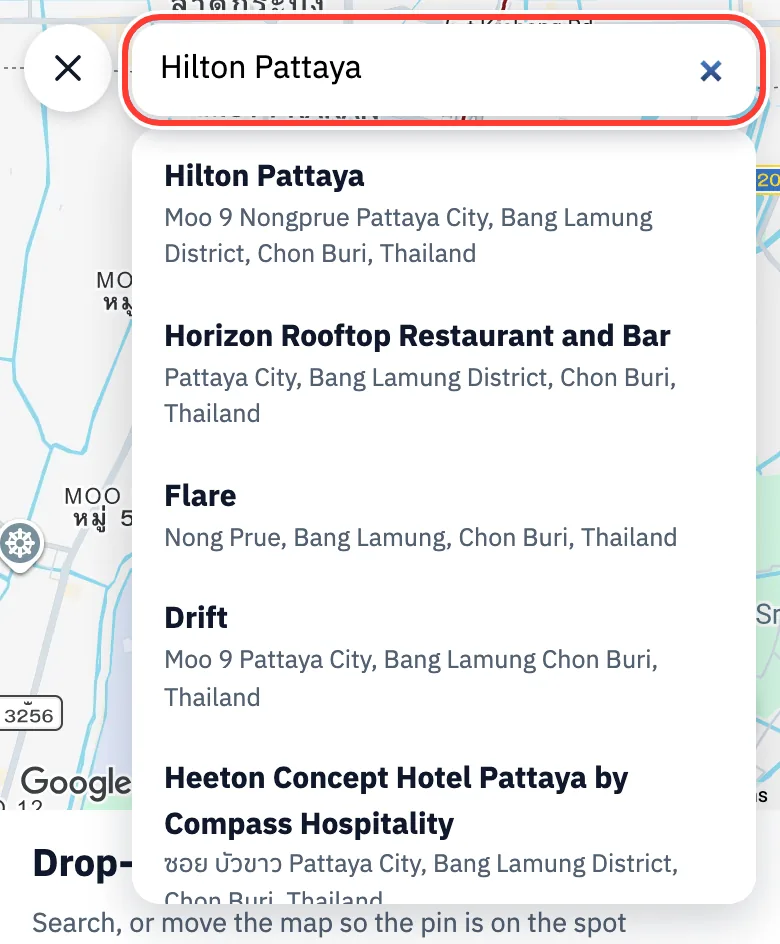
Or move the map until the pin is on the spot, tap the my-location button, or tap Paste a Google Maps link.
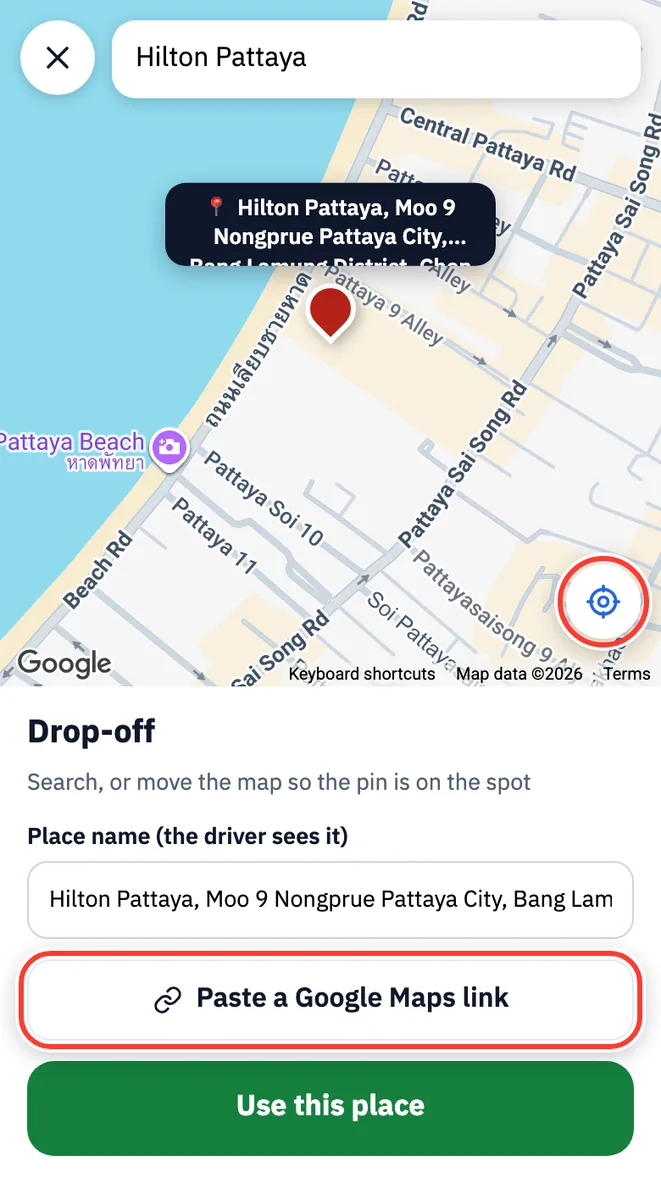
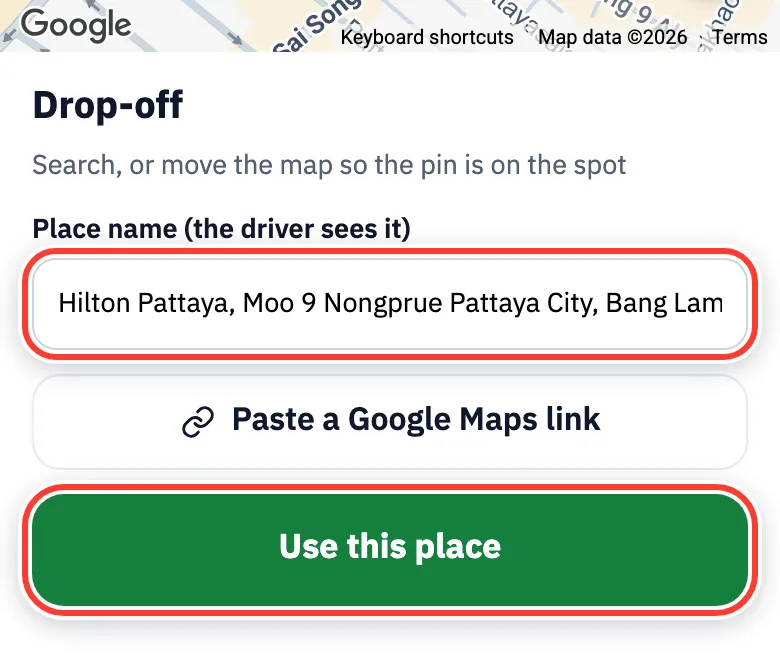
Check the place name (the driver sees it), then tap Use this place.
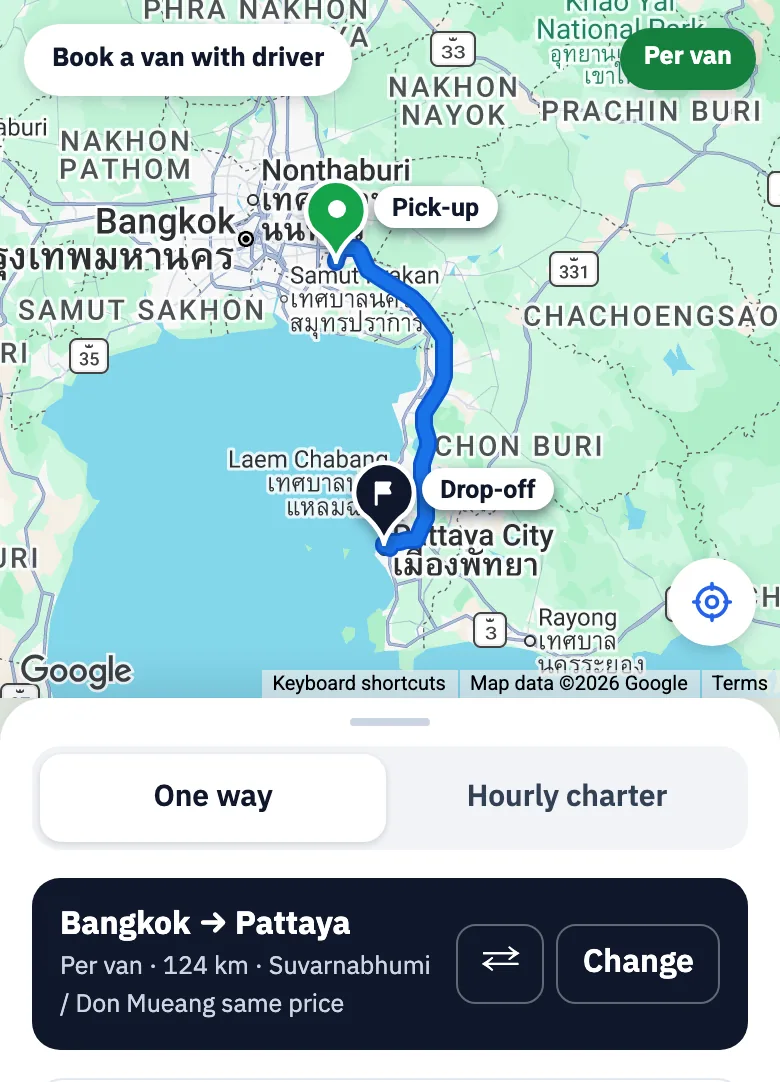
The driver does not hold a name sign. The driver drives up to where you stand: on the day you send your spot and a photo of the gate in the app (see the travel day section).
↑ Back to contentsPlan an hourly charter day
For: Families and groups hiring the van by the hour
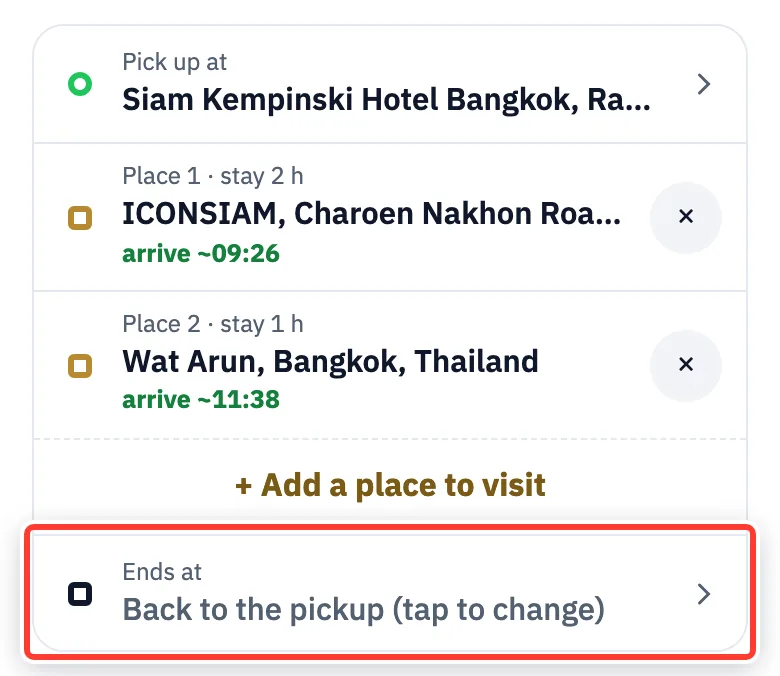
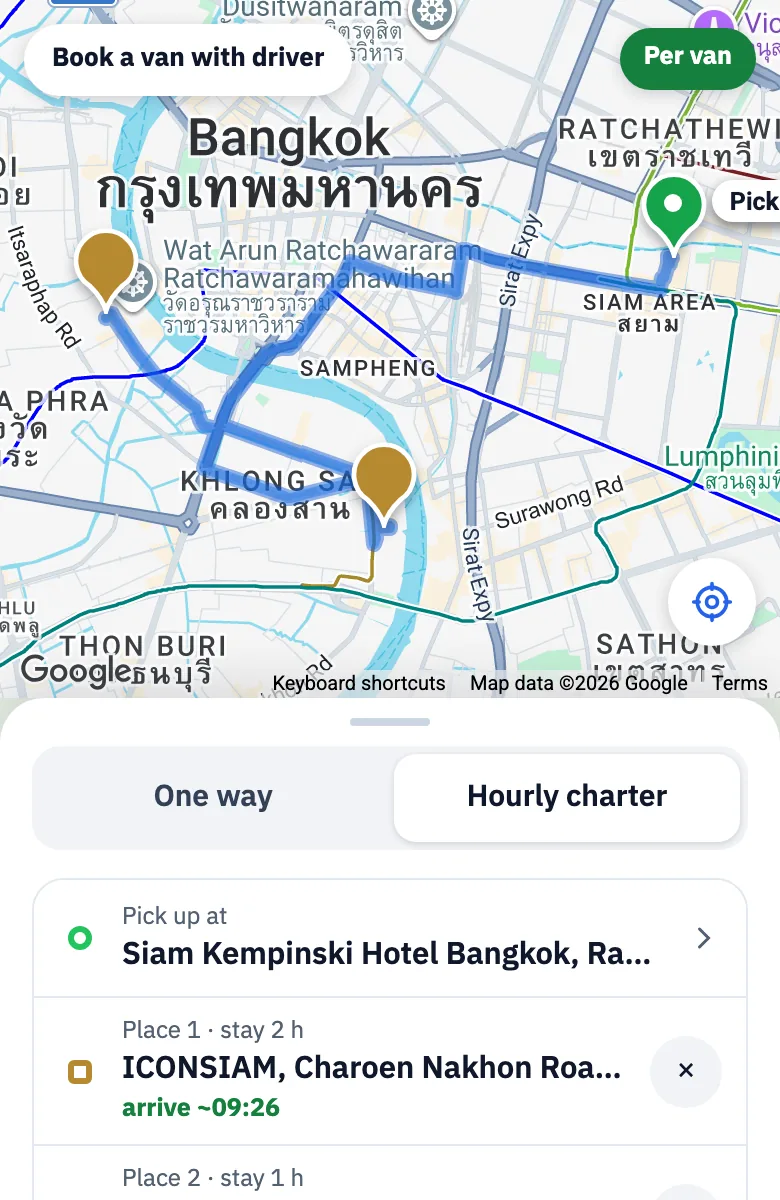
Tap Hourly charter, then tap Pick up at and choose your hotel.
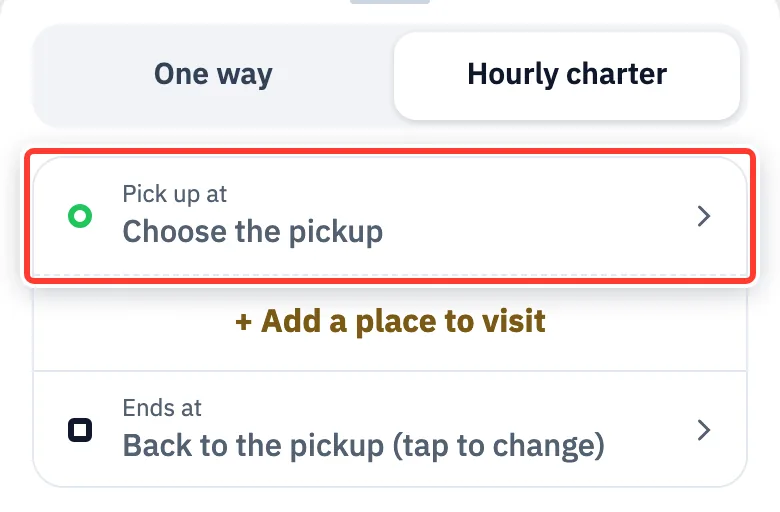
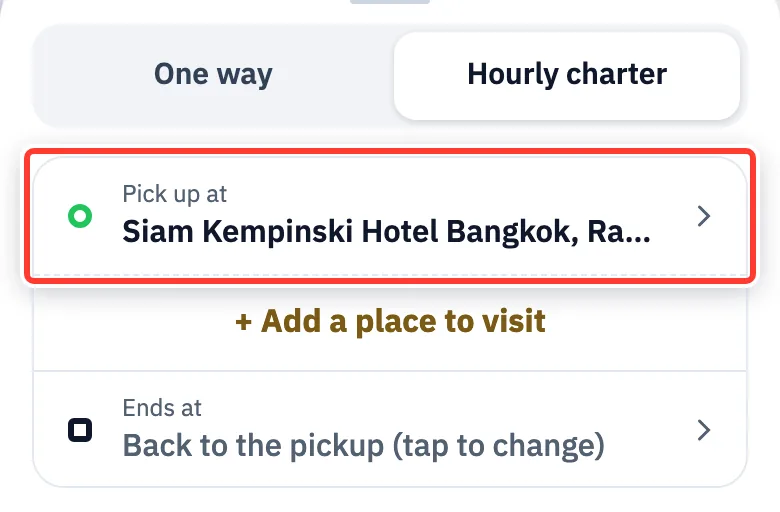
Tap + Add a place to visit for each stop, choose How long will you stay here? (30 min – 4 h), then tap Use this place.
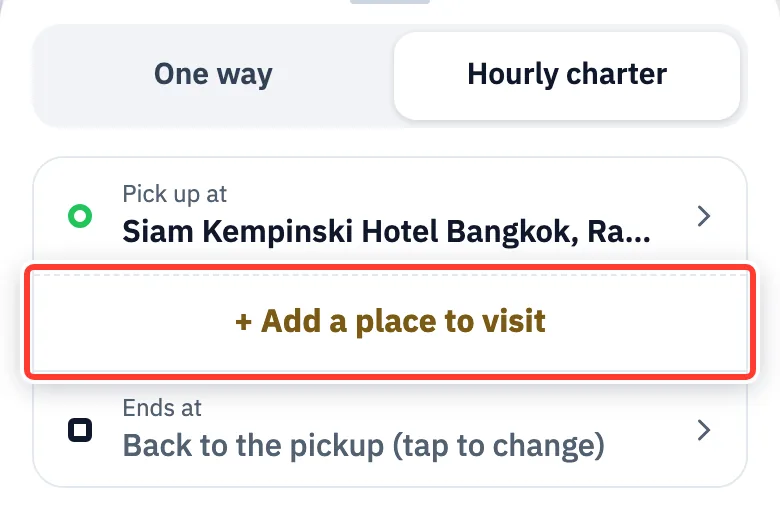
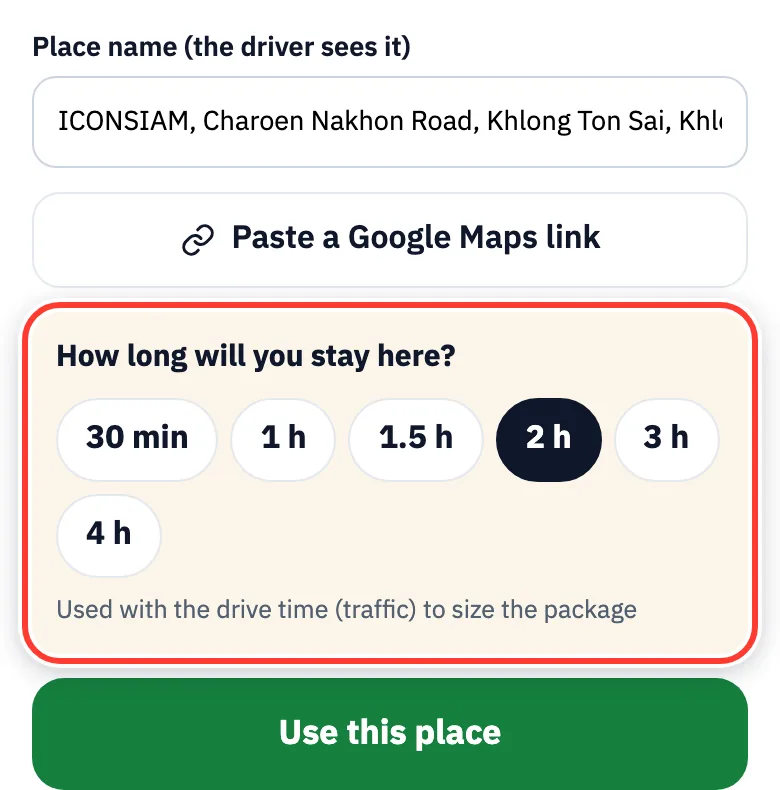
Ends at is back at the pickup; tap it to change. The app shows about when you reach each place.
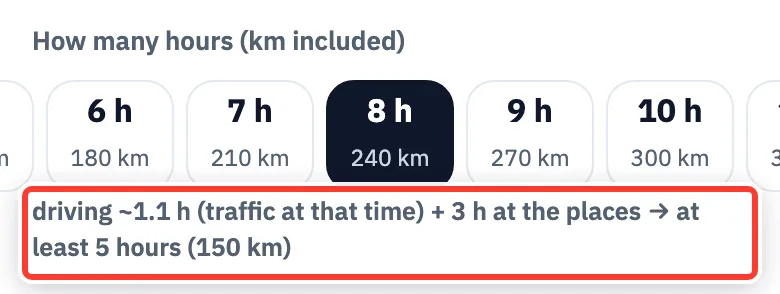
Choose the hours. Each choice shows the distance included, e.g. 8 h = 240 km. If your places need longer, the app raises the hours for you.
Pickup date and time (Thai time)
For: Everyone, including visitors in other time zones
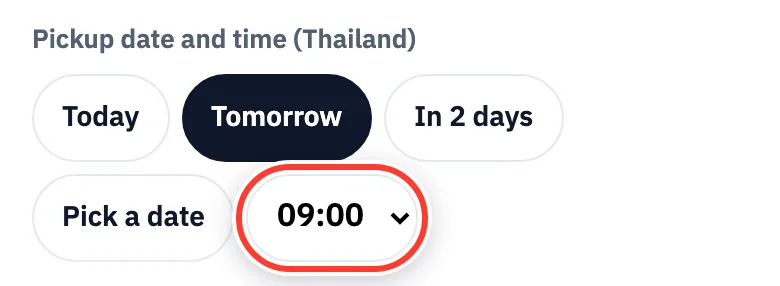
Tap Today, Tomorrow, In 2 days or Pick a date.
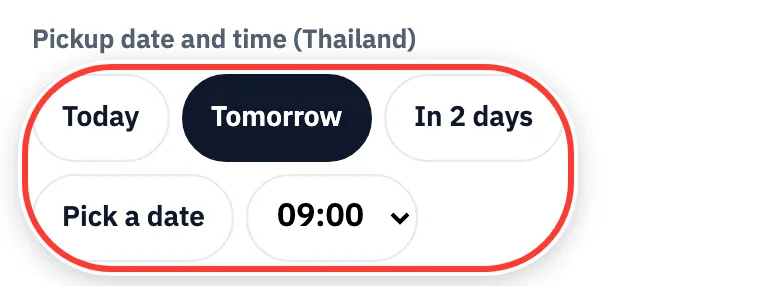
Choose the pickup time. It is always Thailand time (every 30 minutes).
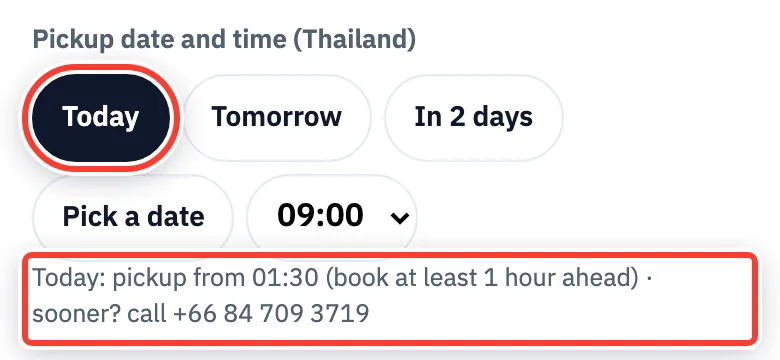
Booking for today? Book at least 1 hour ahead. Sooner than that, call +66 84 709 3719.
Airport pickup: choose your landing time and add your flight number. Our team checks the real landing time before the driver sets off.
People, luggage and child seats
For: Families with children, golfers, groups with big bags
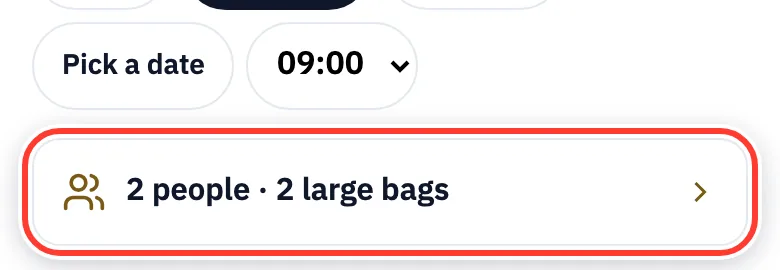
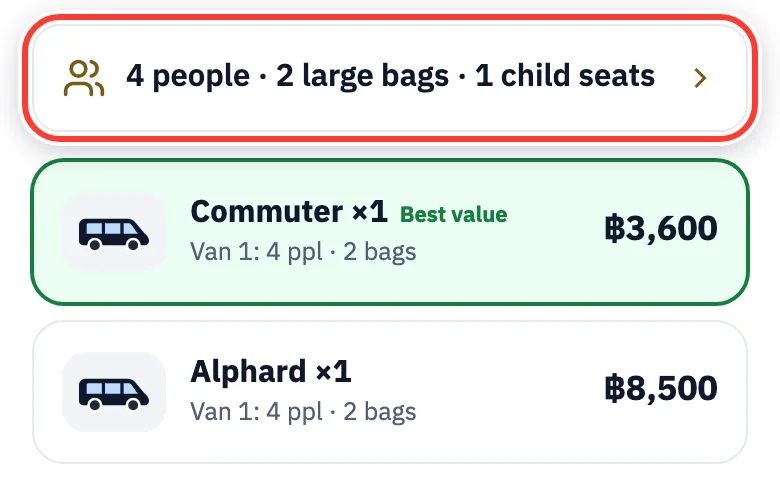
Tap the people and bags row, e.g. 2 people · 2 large bags.
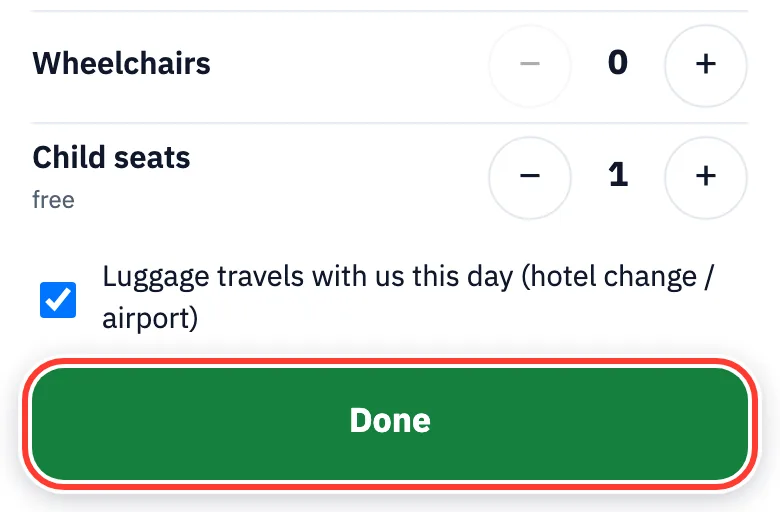
Use + and − for adults, children (each needs a seat), large suitcases, small bags, golf bags, strollers, wheelchairs and child seats.
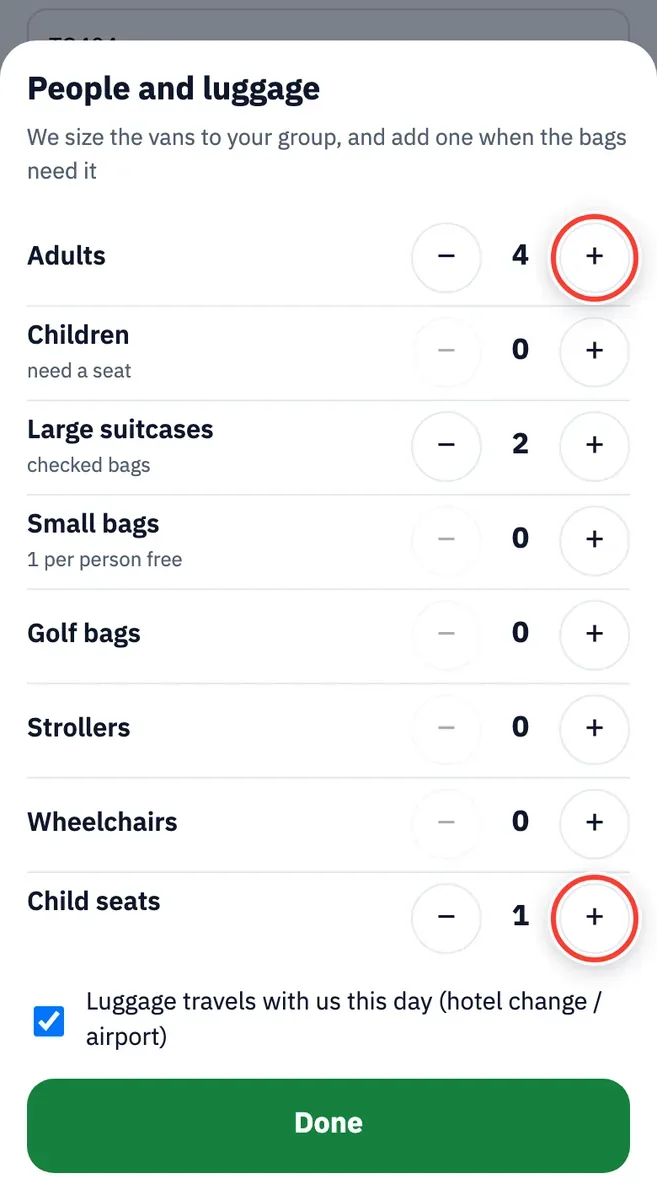
Tap Done. If the bags need more room than one van, the app adds a van automatically.
Choose the van and see the price
For: Every booking
The app picks the best-value van for you (Best value). Want the Alphard? Tap its card.
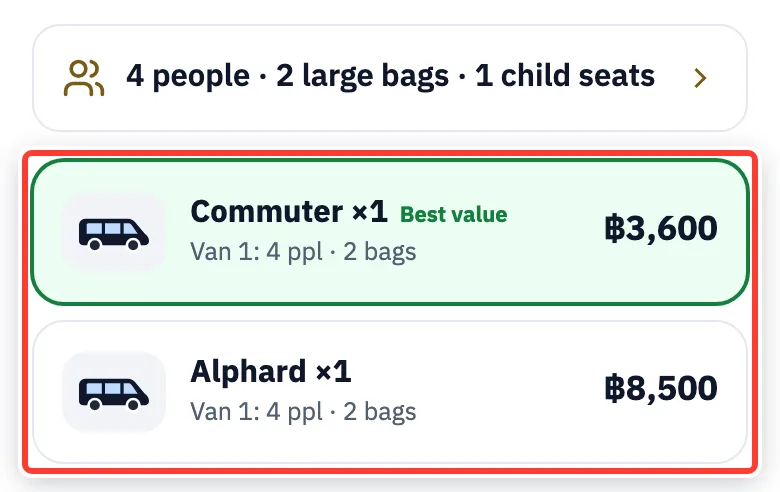
The price is for the whole van and includes the driver, fuel, tolls and parking. The Trip total at the bottom updates at once.
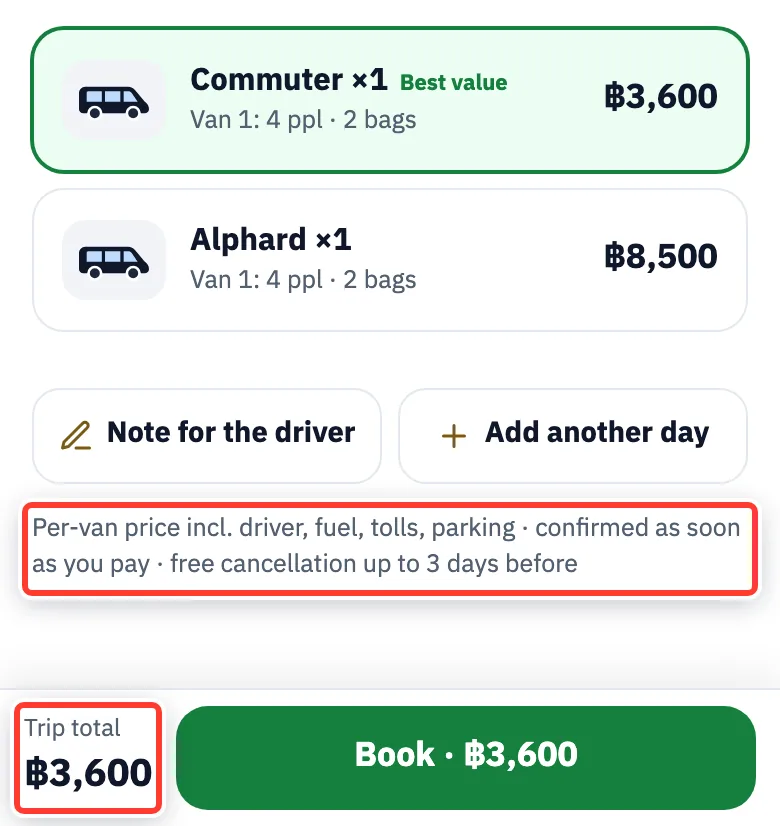
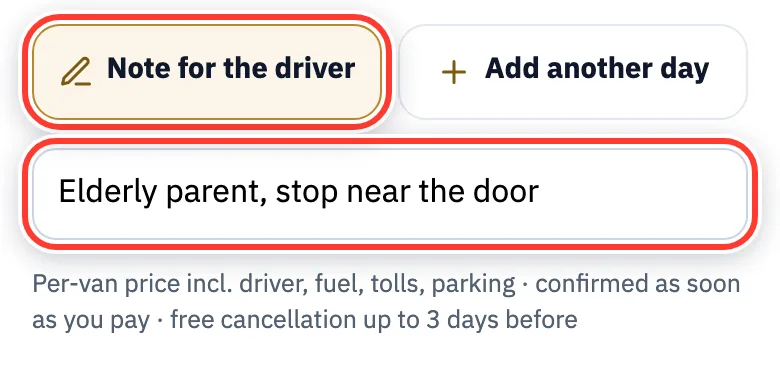
Something for the driver? Tap Note for the driver, e.g. “elderly parent, stop near the door”.
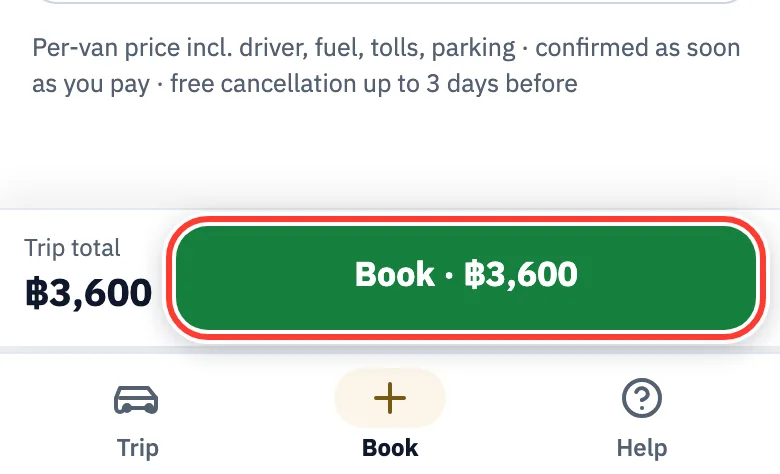
Tap the green Book · ฿price button. If something is missing, the app tells you what.
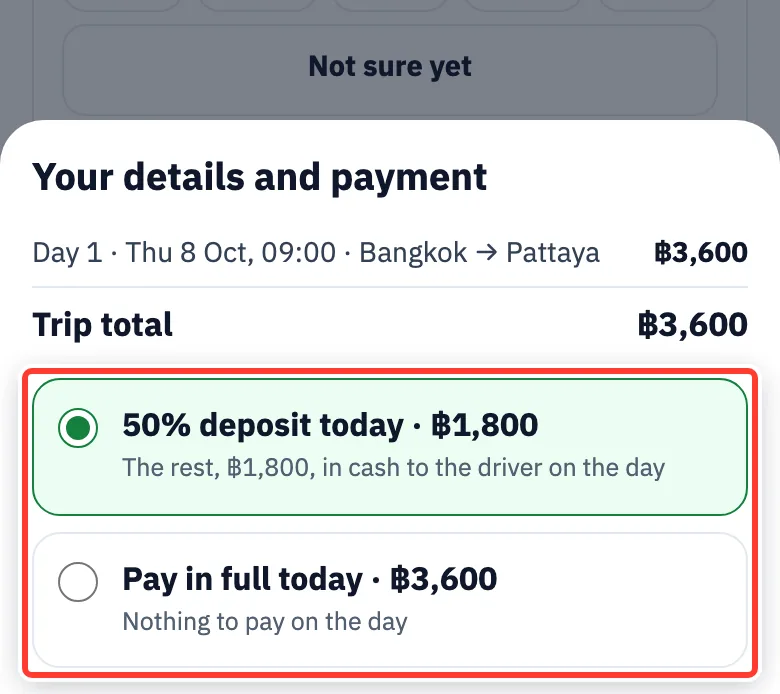
Your details, deposit or full payment
For: Every booking
Choose 50% deposit today (the rest is paid in cash, in Thai baht, to the driver) or Pay in full today. No Thai cash when you land? Pay in full.
Enter the Traveller name.
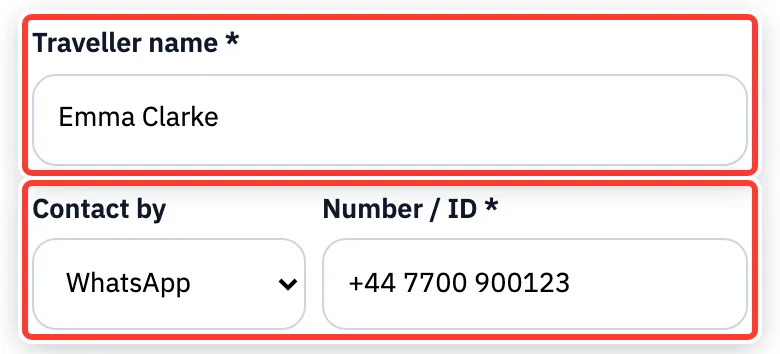
Choose Contact by (LINE, WhatsApp, Telegram, WeChat, KakaoTalk, phone or email), then enter the Number / ID. A phone or WhatsApp number is quickest.
Add your email under Email (recommended…): you get the confirmation by email and can find your booking later.
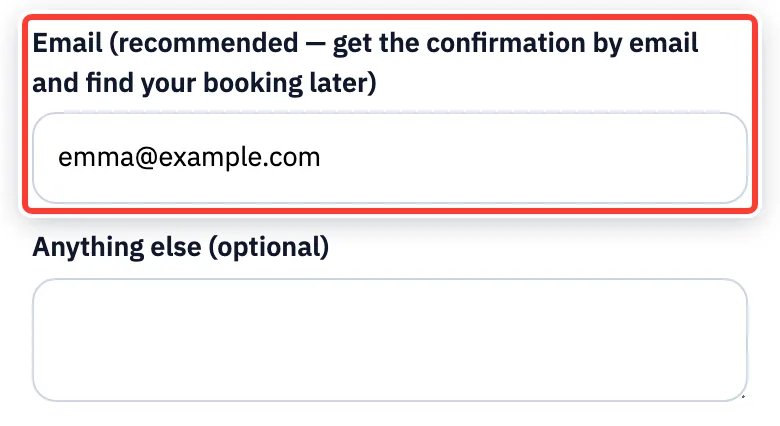
Anything else for our team? Write it under Anything else (optional).
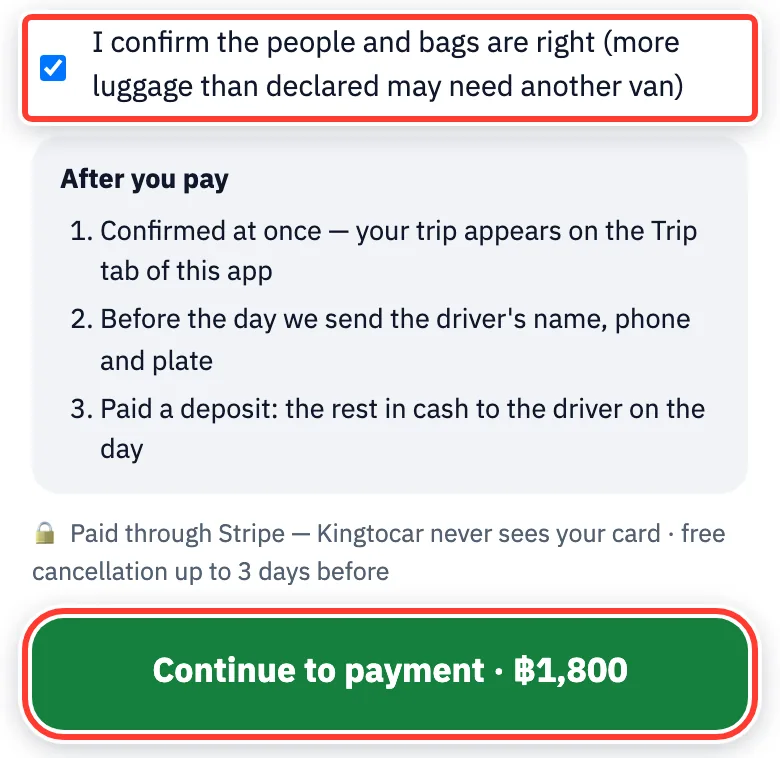
Tick I confirm the people and bags are right, then tap Continue to payment · ฿amount.
Pay
For: Every booking
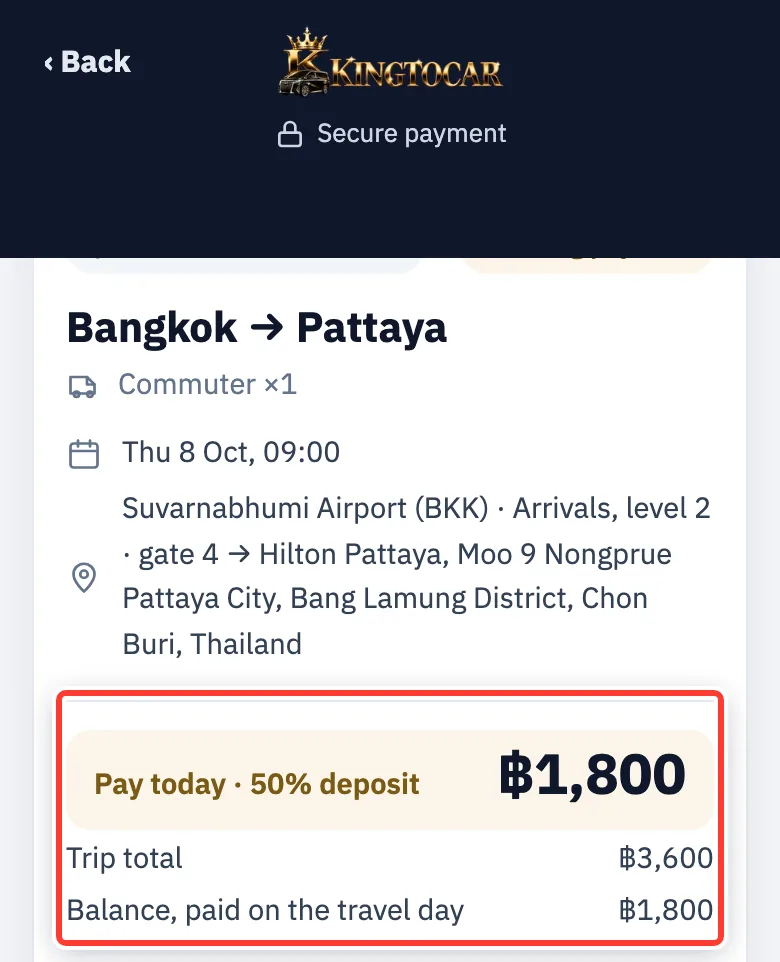
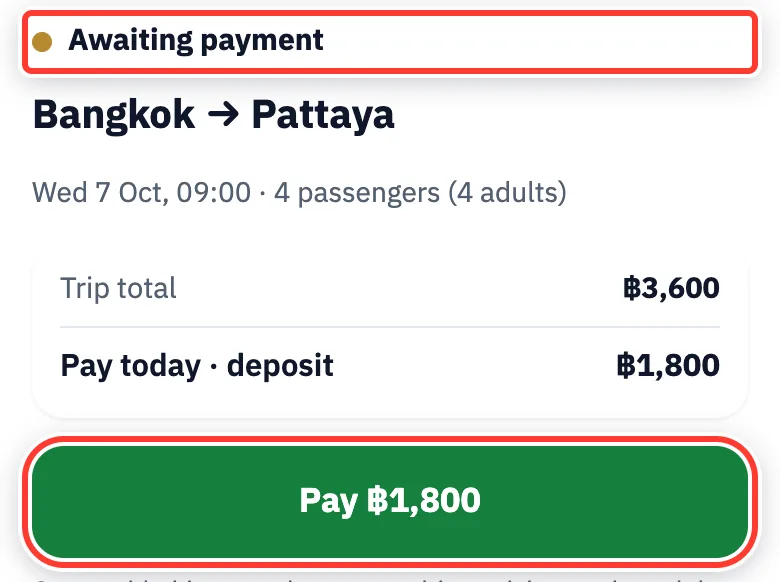
The payment page shows your trip, what you pay today (50% deposit or in full) and the balance.
Paying by card? Tap Credit / debit card (Visa, Mastercard, Apple Pay).
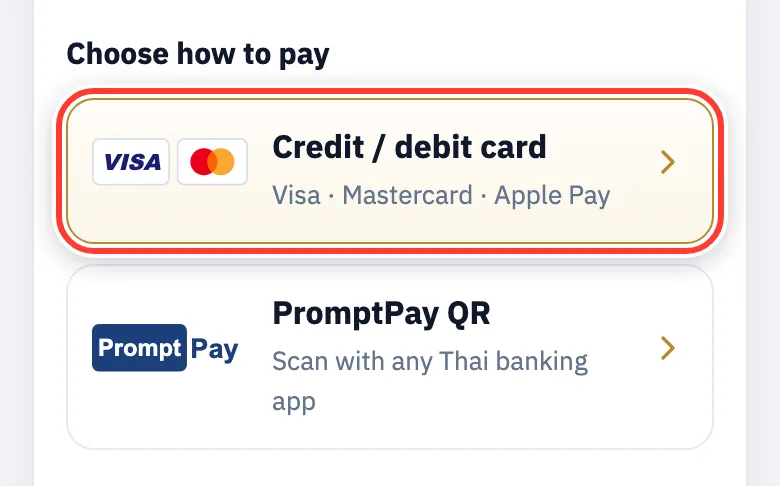
Using a Thai bank app? Tap PromptPay QR.
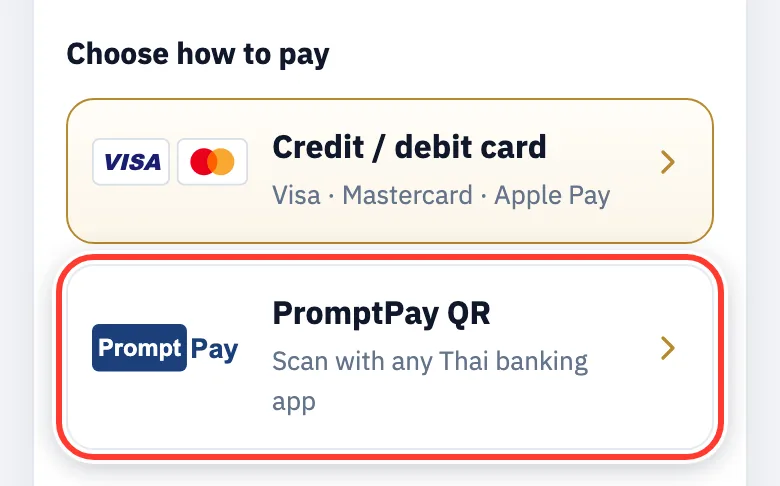
A secure Stripe payment page opens. Stripe handles the card and QR payments, and Kingtocar never sees your card number. It may ask for your name, phone and email again.
PromptPay QR: scan it with your bank app. Booking on the same phone? Take a screenshot of the QR, open your bank app, tap Scan and pick the picture from your photos.
Crypto: tap Crypto · Bitcoin / USDT, pick the coin and send the exact amount to the address shown. It confirms automatically.
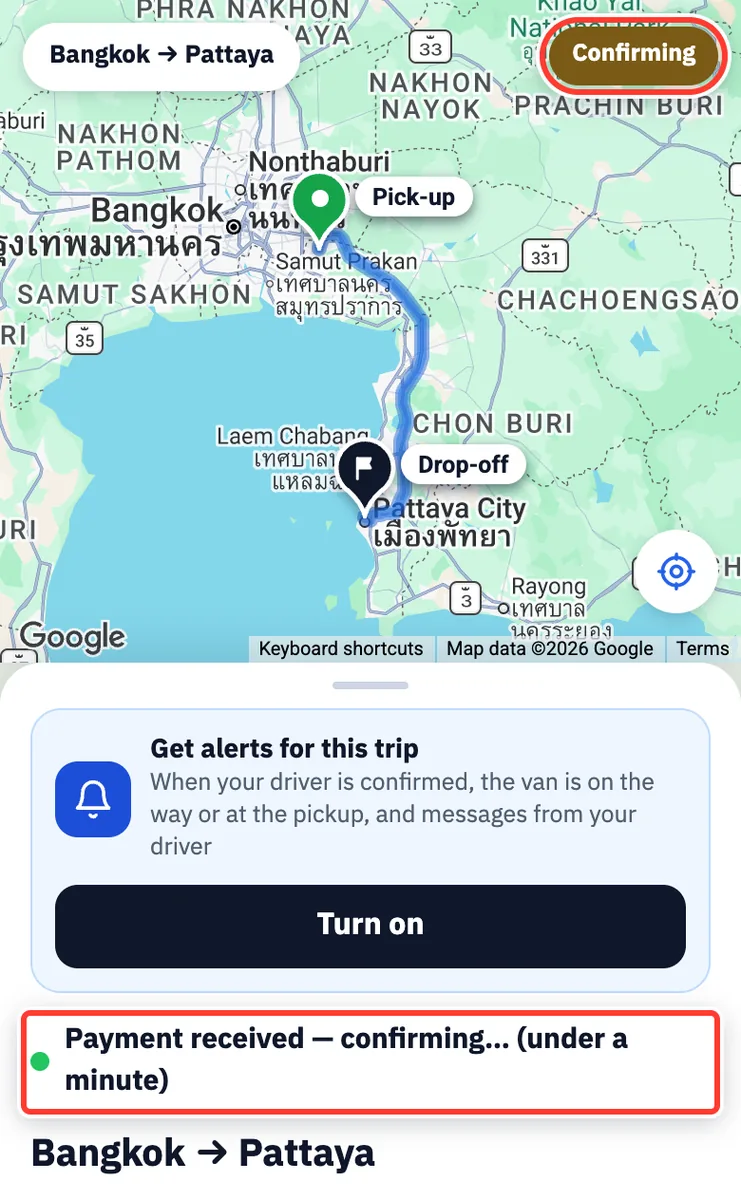
After paying you see Confirming. Usually within a minute your trip page opens by itself. Still says Confirming after 5 minutes? Don’t pay again; message LINE @kingtocar.
Not paid yet? Your trip page says Awaiting payment; tap Pay ฿…. The payment link closes within 24 hours.
After booking
Your trip page after paying
For: Everyone who has paid
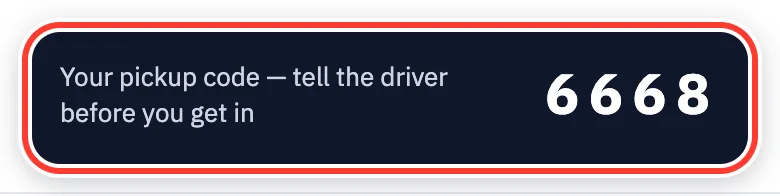
The Trip tab shows your pickup time, the van and Your pickup code (4 digits). Tell it to the driver before you get in. The Get alerts for this trip card at the top is explained under Notifications.
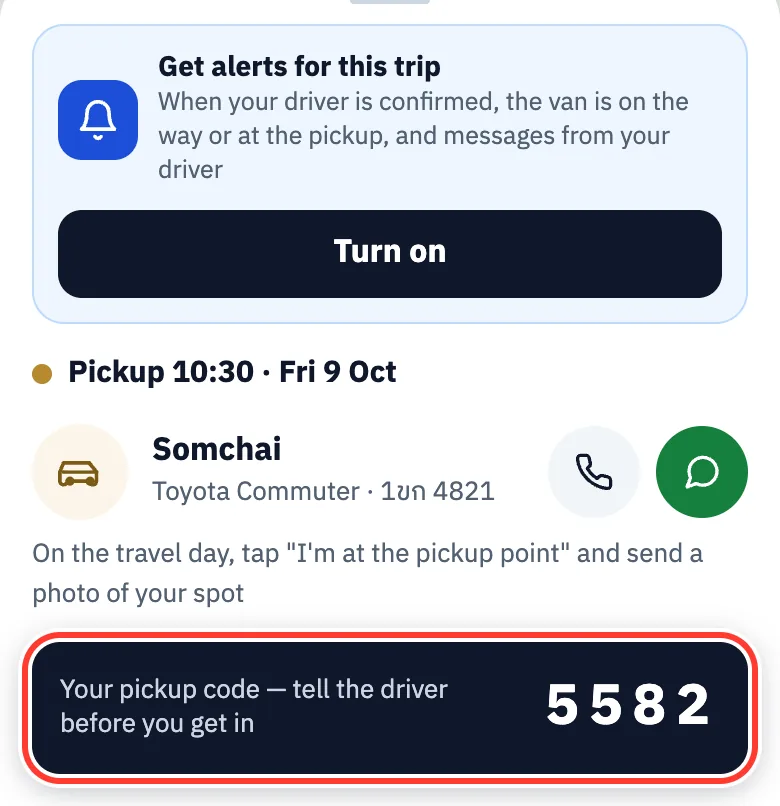
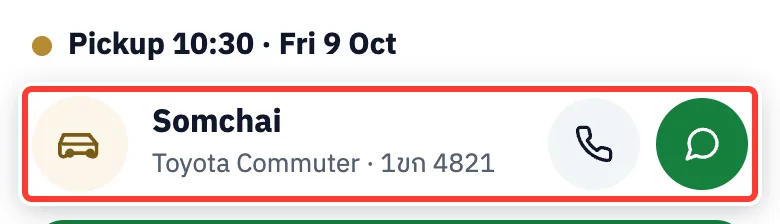
Before the trip, the driver’s name, the plate and the call and chat buttons appear here. Until then, the page says the driver and plate will be sent before the trip.
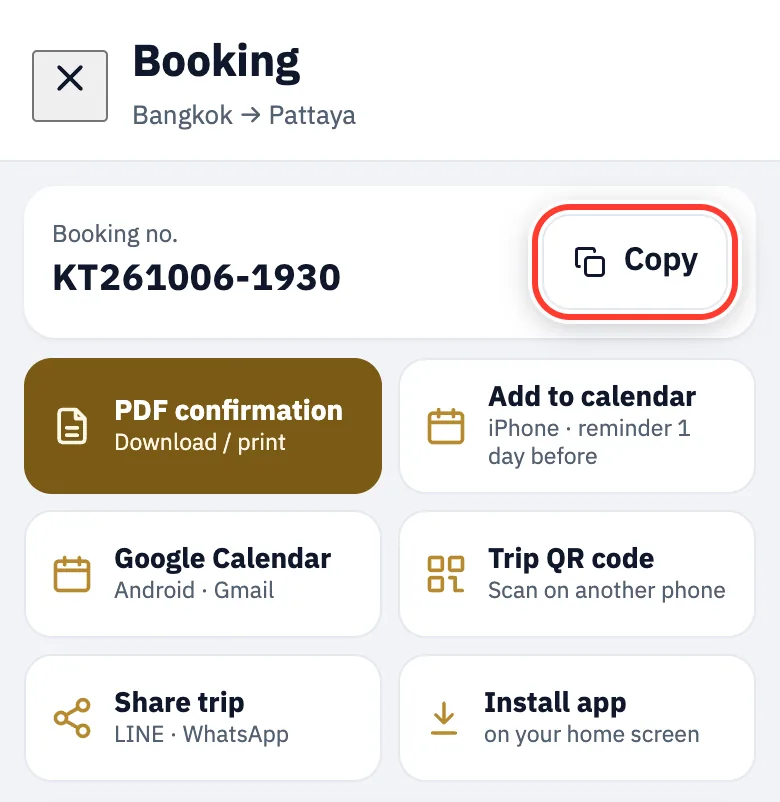
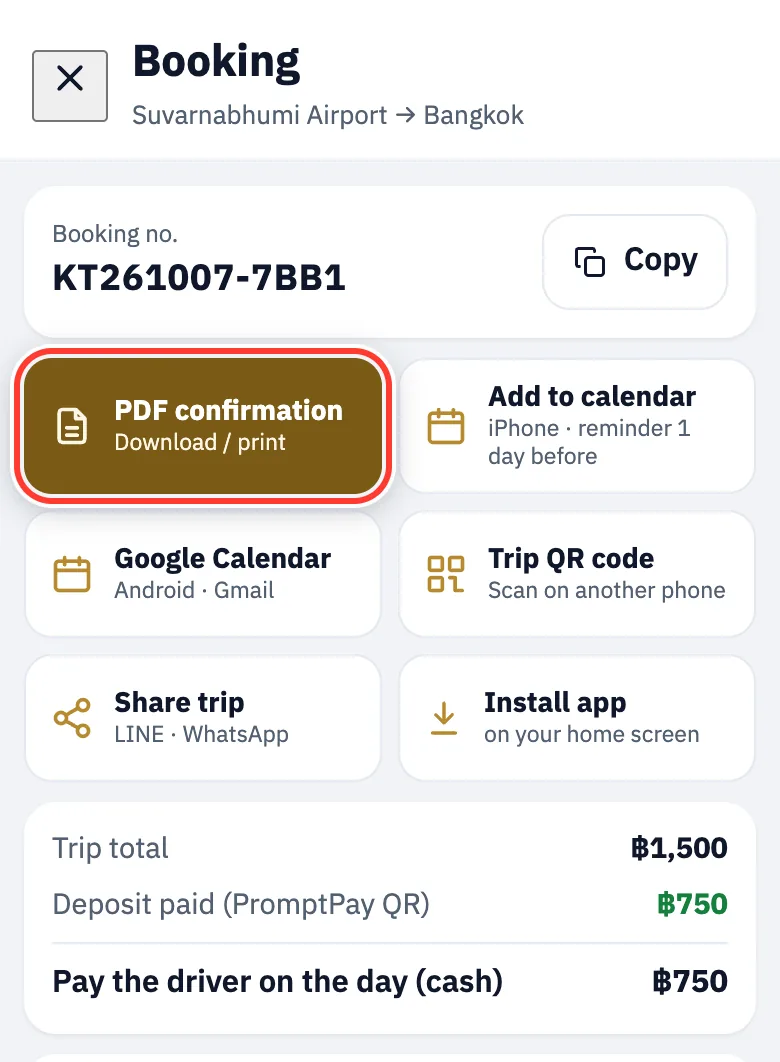
Tap the Booking documents and payment card to see your booking number. Tap Copy to copy it.
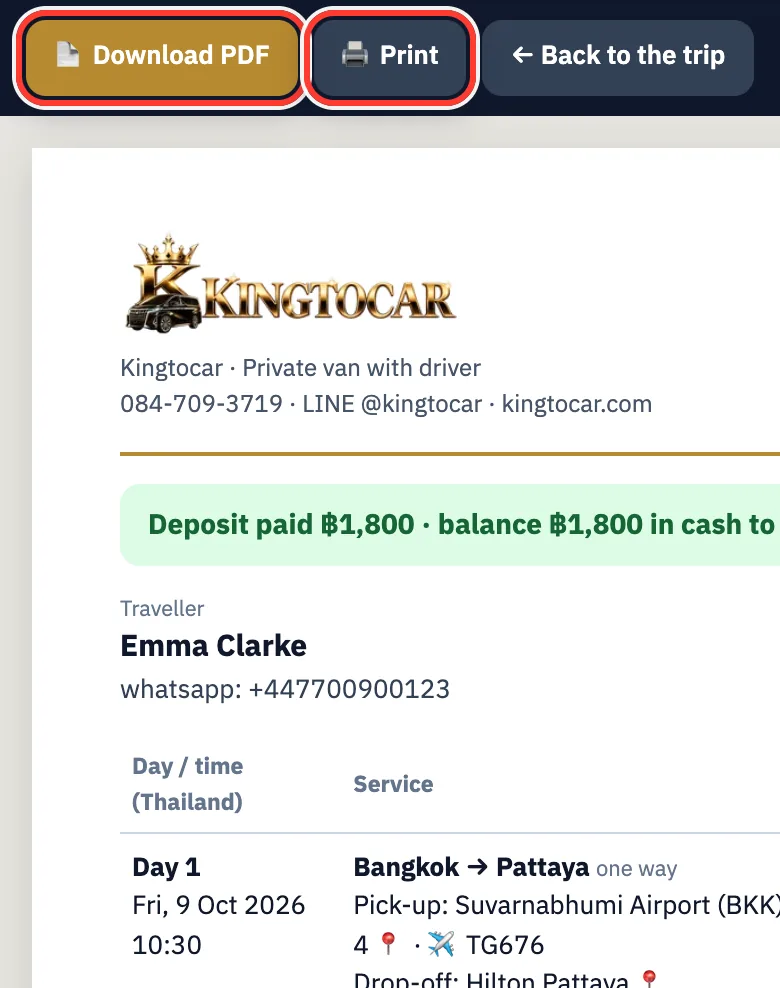
PDF confirmation: download or print your booking confirmation.
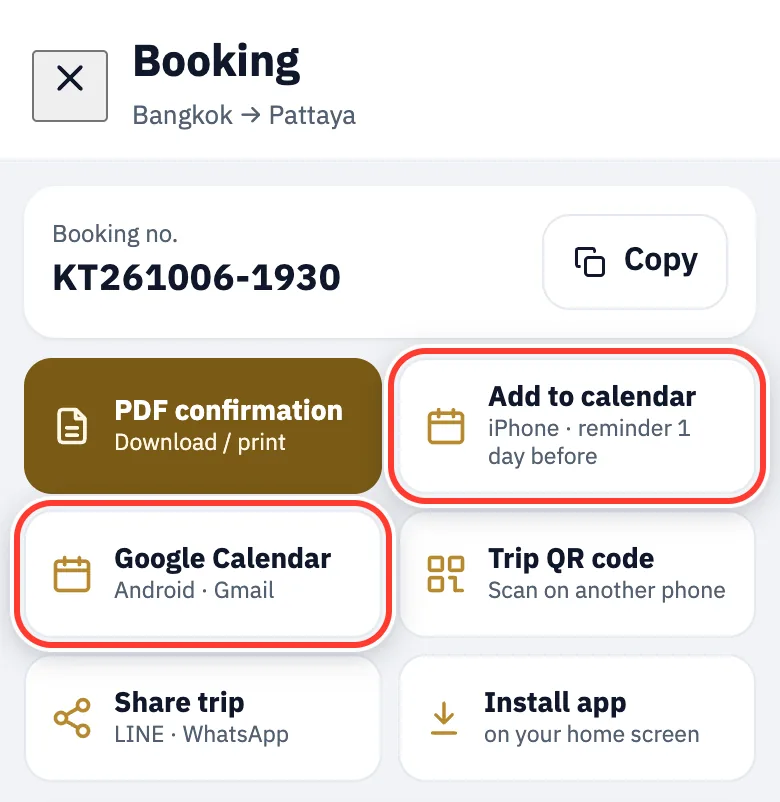
Add to calendar (iPhone, reminder 1 day before) or Google Calendar (Android).
Let your family open the same trip: tap Share trip and send the link by LINE or WhatsApp.
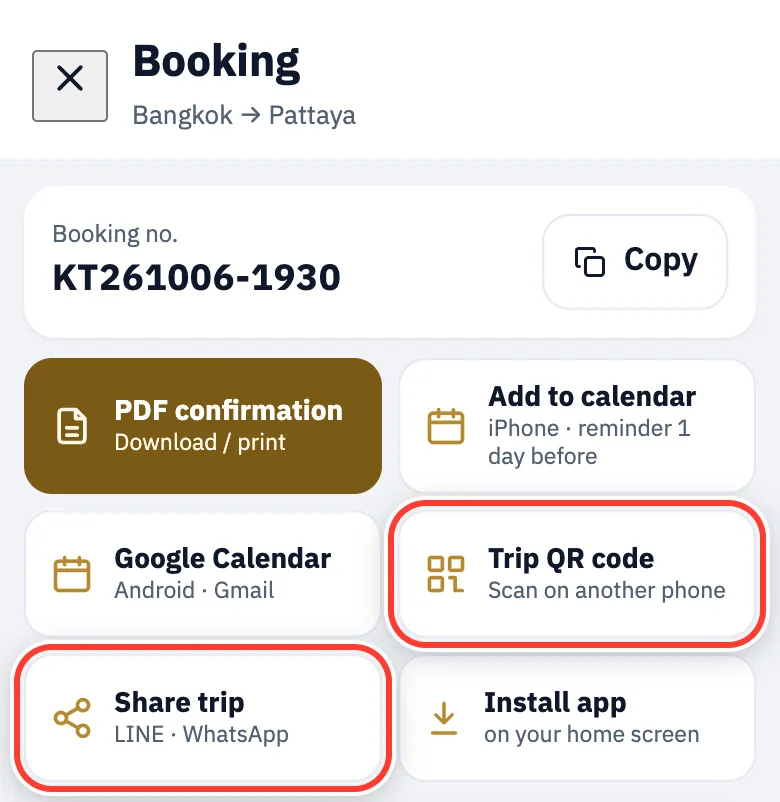
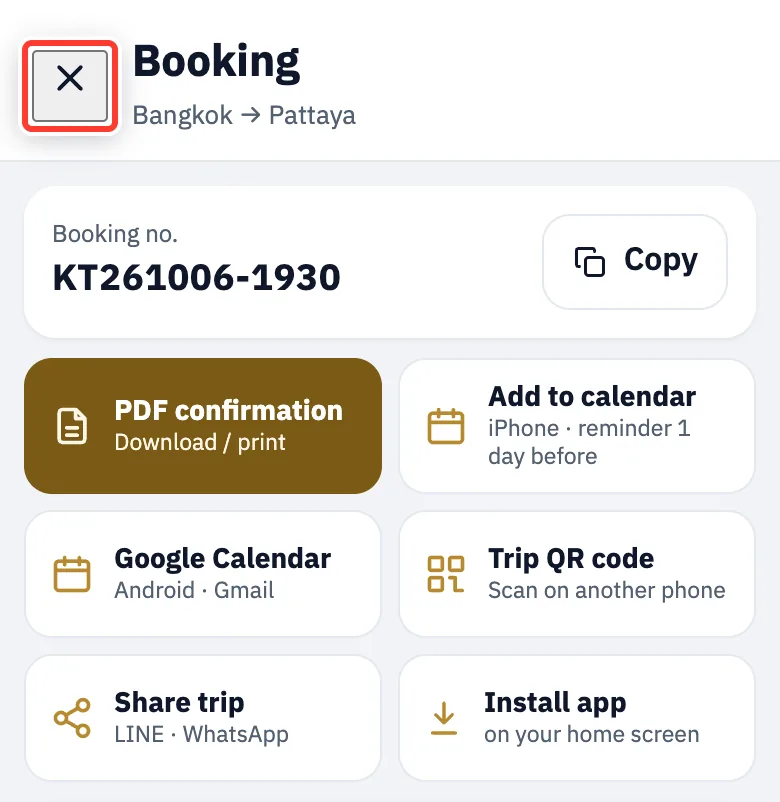
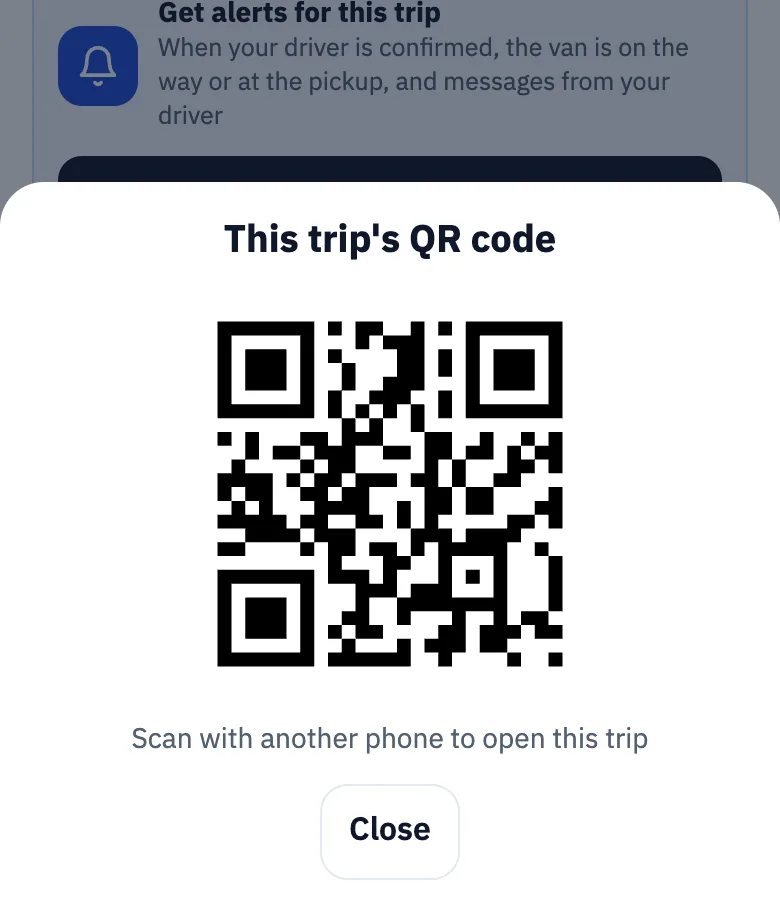
Or tap Trip QR code, then close the Booking sheet with × and the QR is there for the other phone to scan.
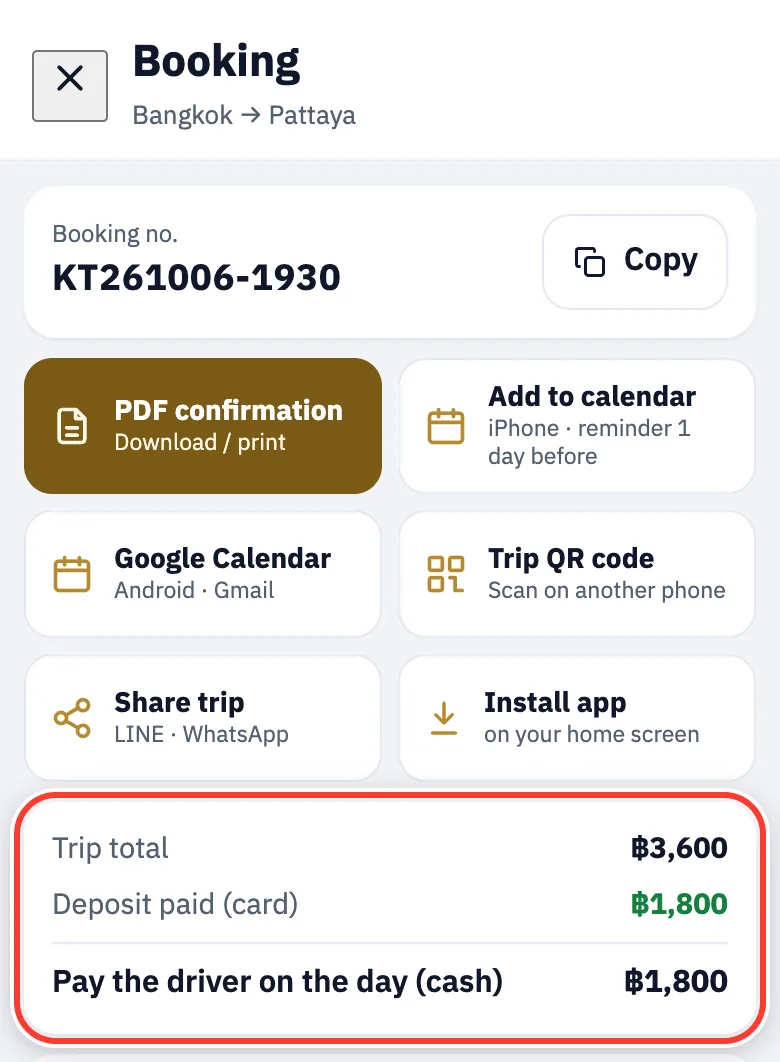
The payment box shows what you paid and how much to Pay the driver on the day (cash).
If you gave an email, you also get a confirmation email with a button that opens your trip page.
Find your booking again
For: If you closed the page, changed phone or booked for someone else
Open the app from its home-screen icon: the trip you opened last opens by itself.
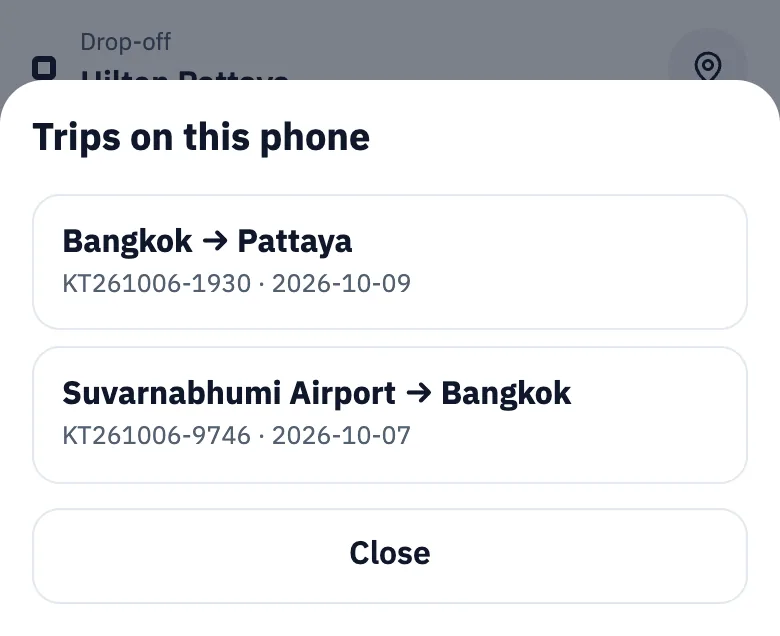
If the app opens on Book (for example from the website), tap Trip and choose your trip under Trips booked on this phone.
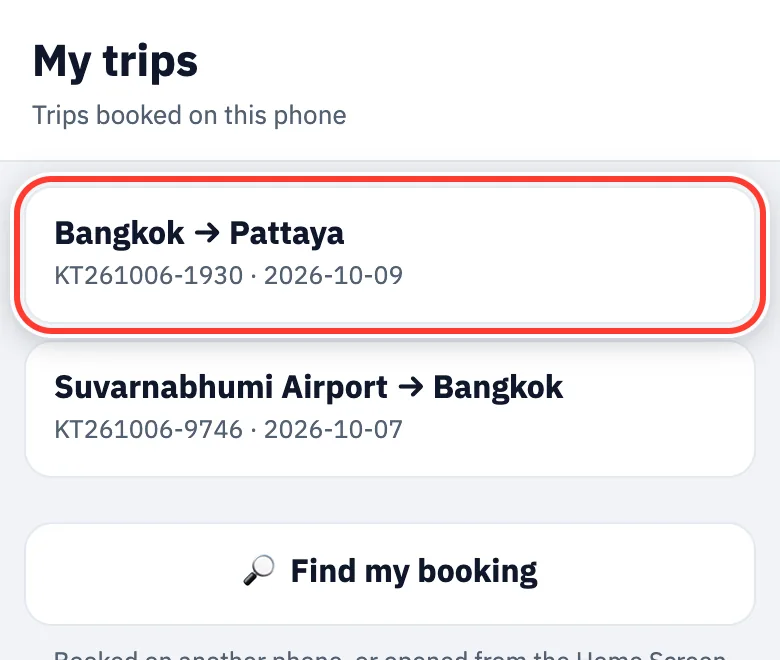
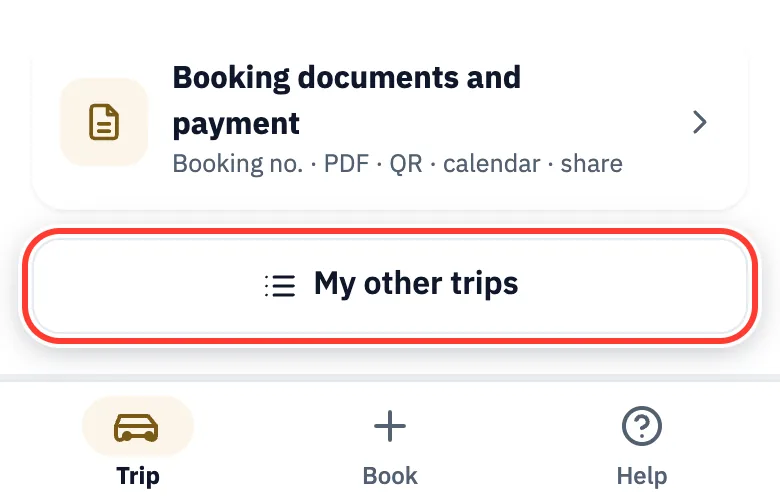
Several trips? Tap My other trips at the bottom of the Trip tab.
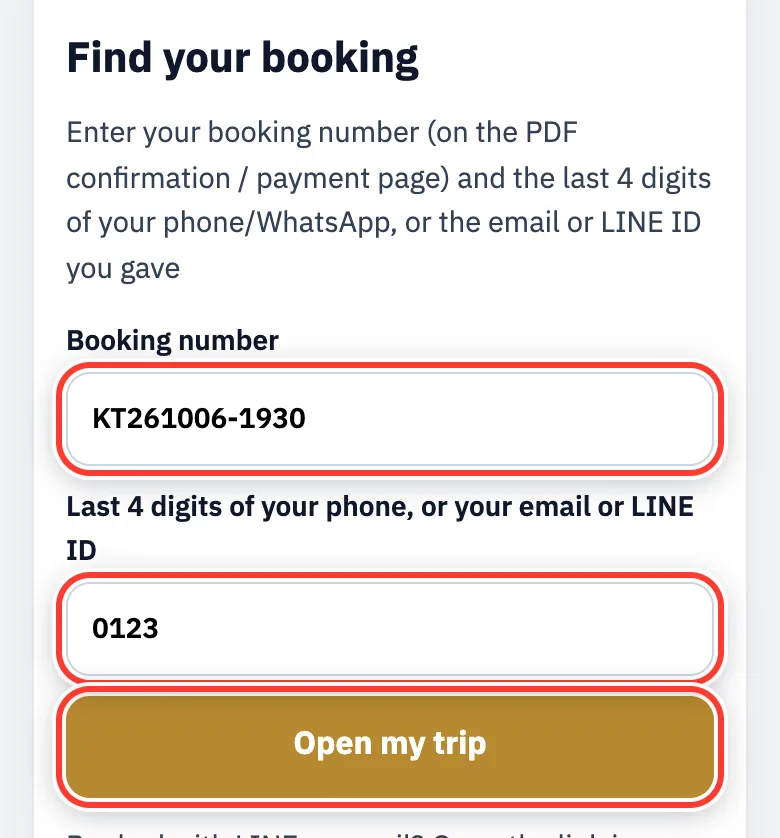
On another phone: tap Find my booking. Enter the booking number (e.g. KT261004-ABCD, on your PDF confirmation) and the last 4 digits of your phone, or the email or LINE ID you booked with, then tap Open my trip.
Still can’t find it? Message LINE @kingtocar or call +66 84 709 3719.
Get the app on your phone
For: Anyone who wants to open the trip quickly on the day

Android: get the free Kingtocar app on Google Play — open your trip from its icon and get alerts when your van is near
Android: tap the Google Play button above, or Get app on the Get the free Kingtocar app card in the Trip tab, then tap Install in Google Play — the first time it opens, the app asks for location and notifications: choose “While using the app” and “Allow”.
Already have the app: the card on the trip page turns into Open this trip in the Kingtocar app — tap it to open the same trip in the app. Trip links tapped in WhatsApp, SMS or email open in the app by themselves.
iPhone (Safari): tap Install on the Install the app card in the Trip tab, then follow the guide: tap Share, scroll down, choose “Add to Home Screen”, then tap “Add”.
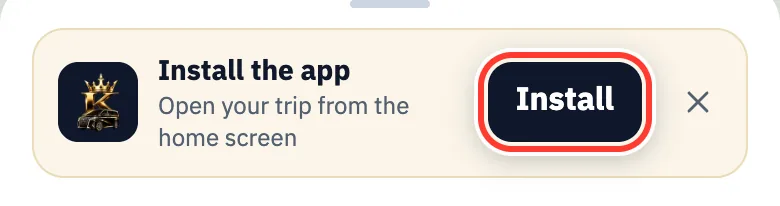
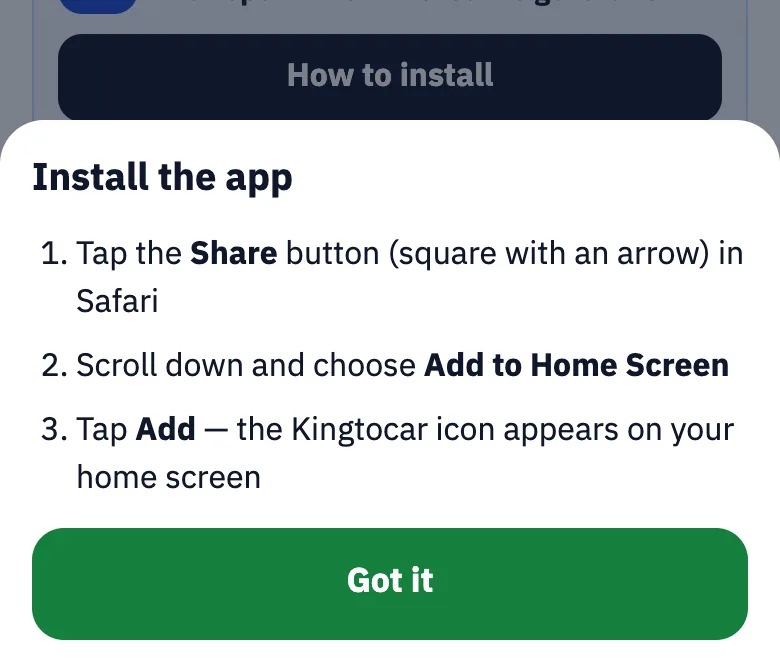
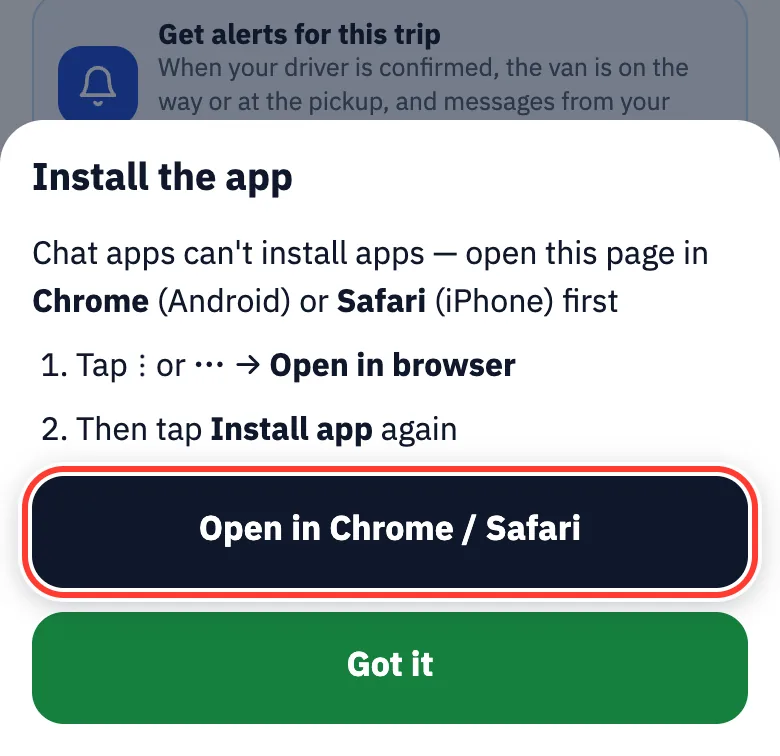
On iPhone, links opened inside LINE or Facebook can’t install. In LINE, tap Open in Chrome / Safari. Elsewhere, tap ⋮ or ⋯ and choose Open in browser. On Android, just tap Open app on the card.
Notifications
For: Everyone who has paid
Alerts tell you when your driver is confirmed, when the van is on the way or at the pickup, and when the driver writes, even with the app closed or the screen off.
On the Trip tab, the Get alerts for this trip card: tap Turn on.
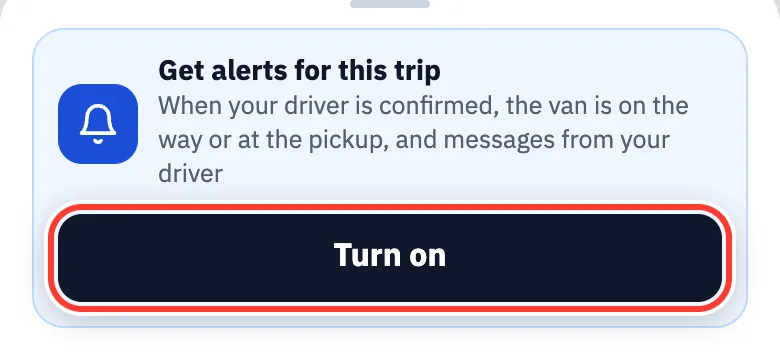
When the browser asks, tap Allow. The card then says Alerts are on ✓; tap Test to try one.
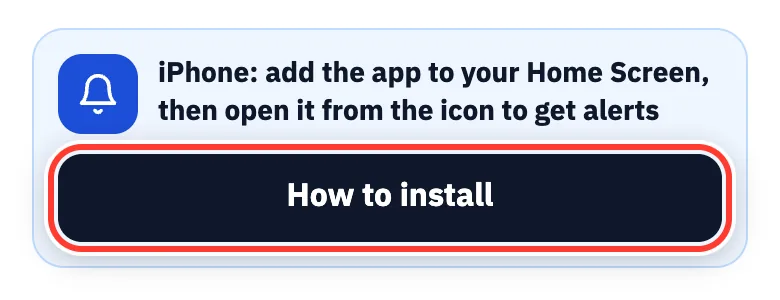
iPhone: add the app to your Home Screen first (iOS 16.4 or later), then open it from the icon. The card has a How to install button.
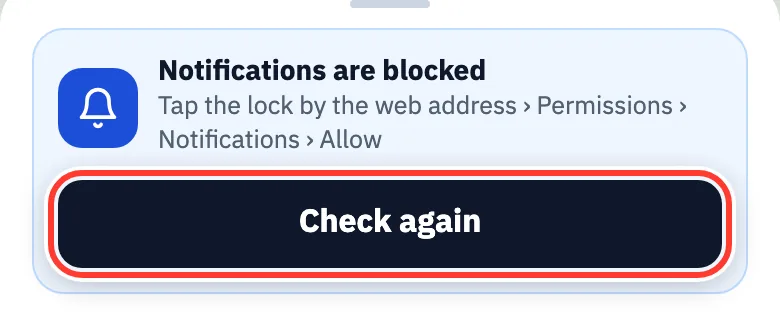
Says Notifications are blocked? Tap the lock by the web address › Permissions › Notifications › Allow, then tap Check again.
To stop the alerts, tap Turn off on the card.
On the travel day
Travel day: meet your driver (one way / airport)
For: One-way transfers and airport pickups
Before you land: the travel-day buttons need internet. Get an eSIM or roaming, or join the airport’s free Wi-Fi before you leave baggage claim. No internet? Call or WhatsApp +66 84 709 3719 from any phone and wait at the exit you chose.
The buttons in this section work on the travel day; before that the trip page only shows a hint. The driver holds no name sign and drives up to where you stand. Only tap I’m at the pickup point when you are really there: it alerts the driver and our team.
On the day, turn on alerts (see Notifications) or keep the trip page open, so you know at once when the van sets off, is close, or the driver writes.
At the airport: collect your bags and walk out of arrivals (Suvarnabhumi level 2, Don Mueang level 1) at the exit you chose, then wait at the kerb outside it.
Tap I’m at the pickup point and move the map so the pin is where you stand.
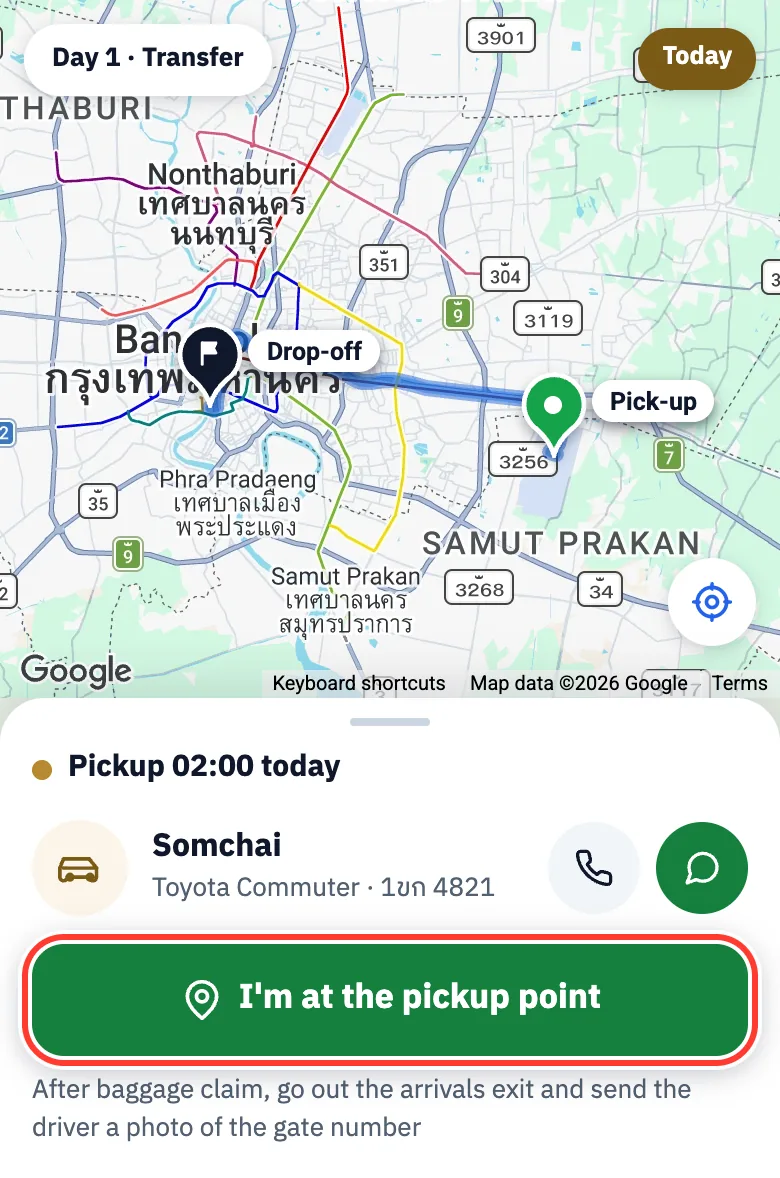
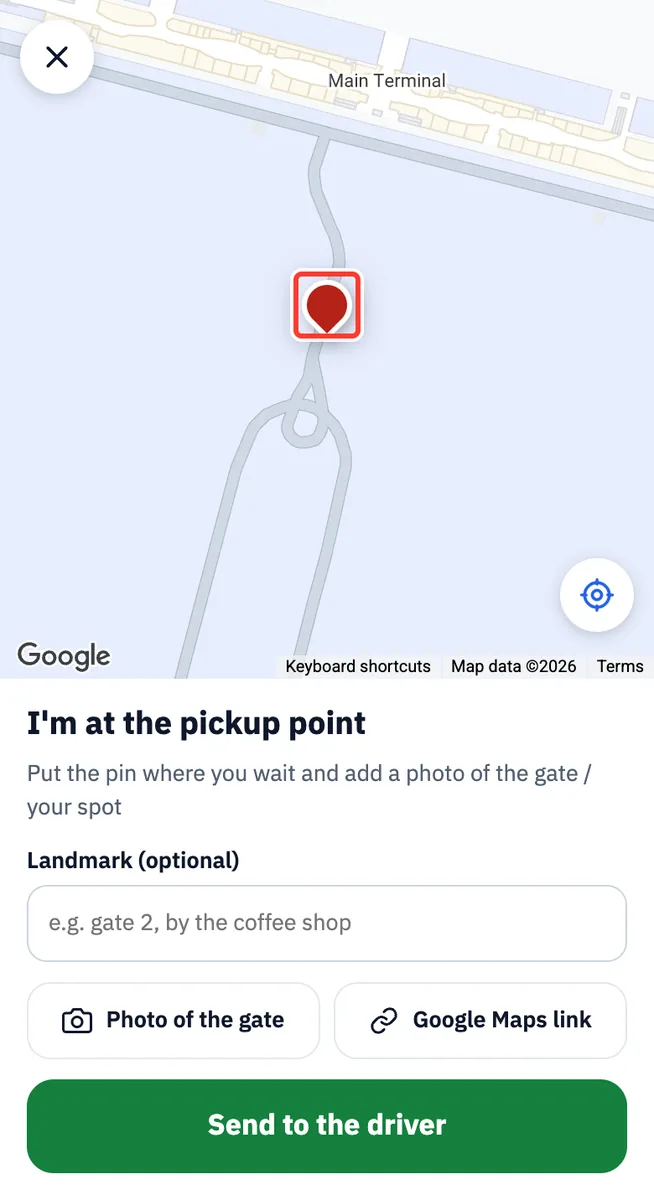
Tap Photo of the gate and take a photo of the exit number.
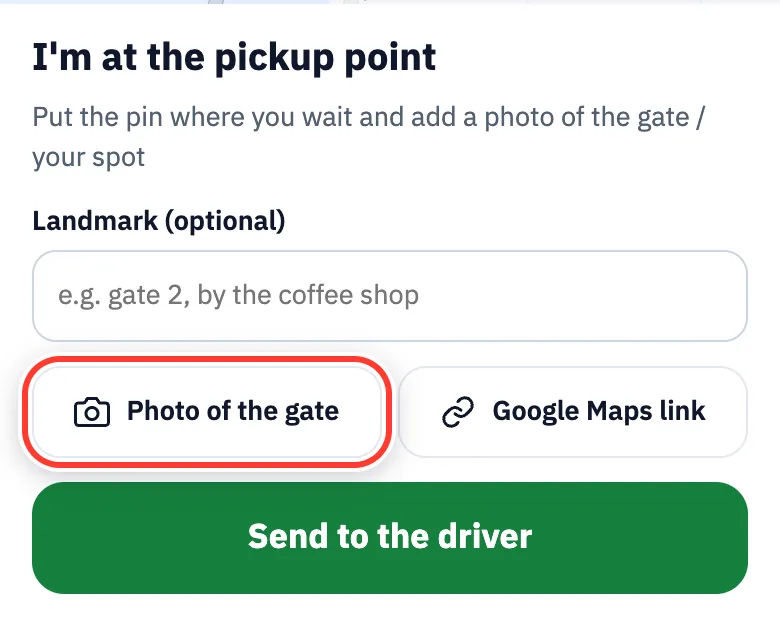
(Optional) type a Landmark, e.g. gate 4, by the coffee shop.
Tap Send to the driver.
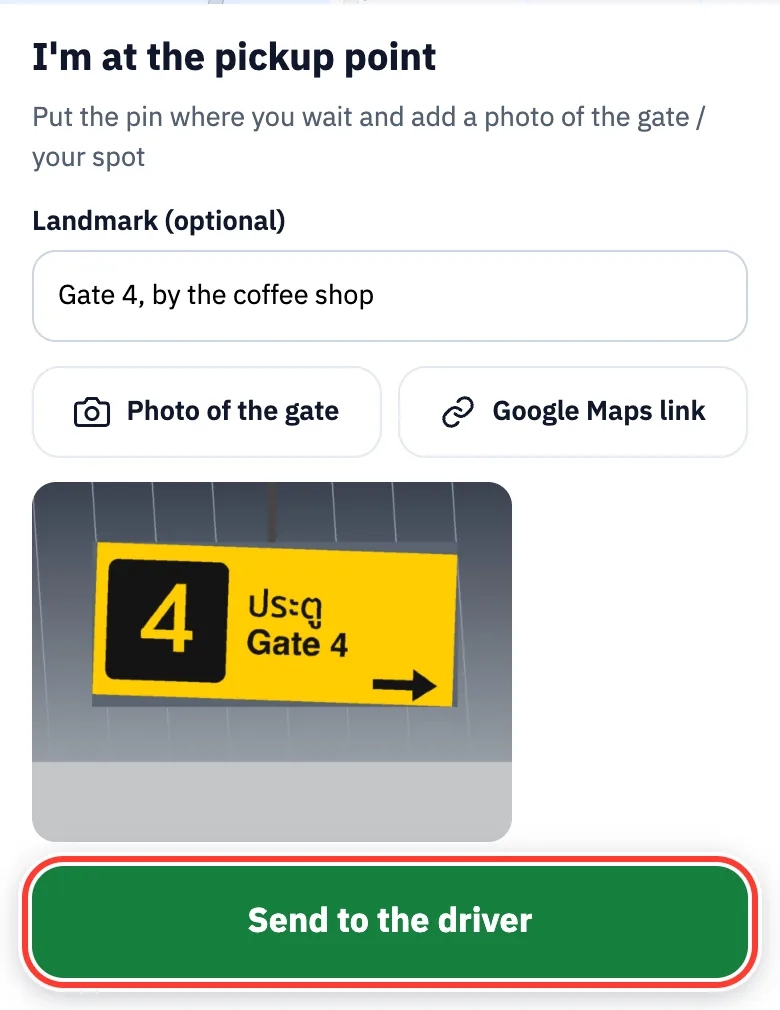
The app shares your location with the driver until you get in. Moved? Tap Send a new photo / spot.
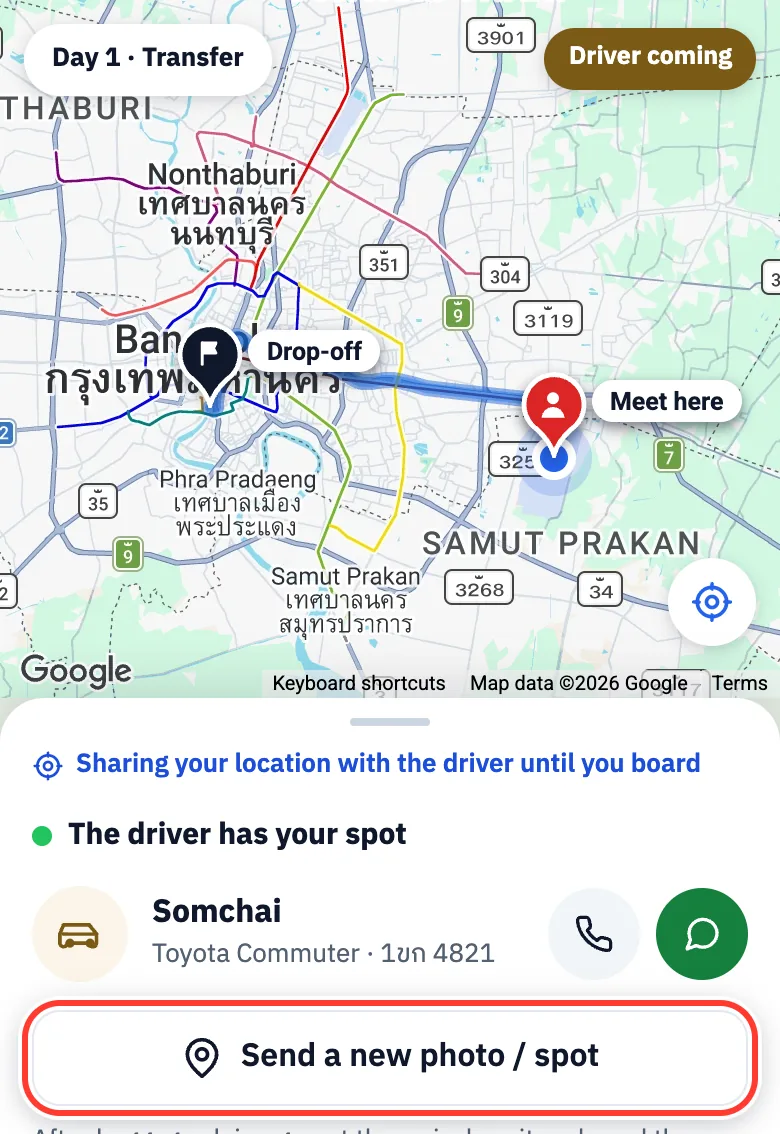
Once the driver sets off, watch the van on the map with the time left. When it is close, Android phones vibrate (on iPhone, watch the screen or turn on alerts).
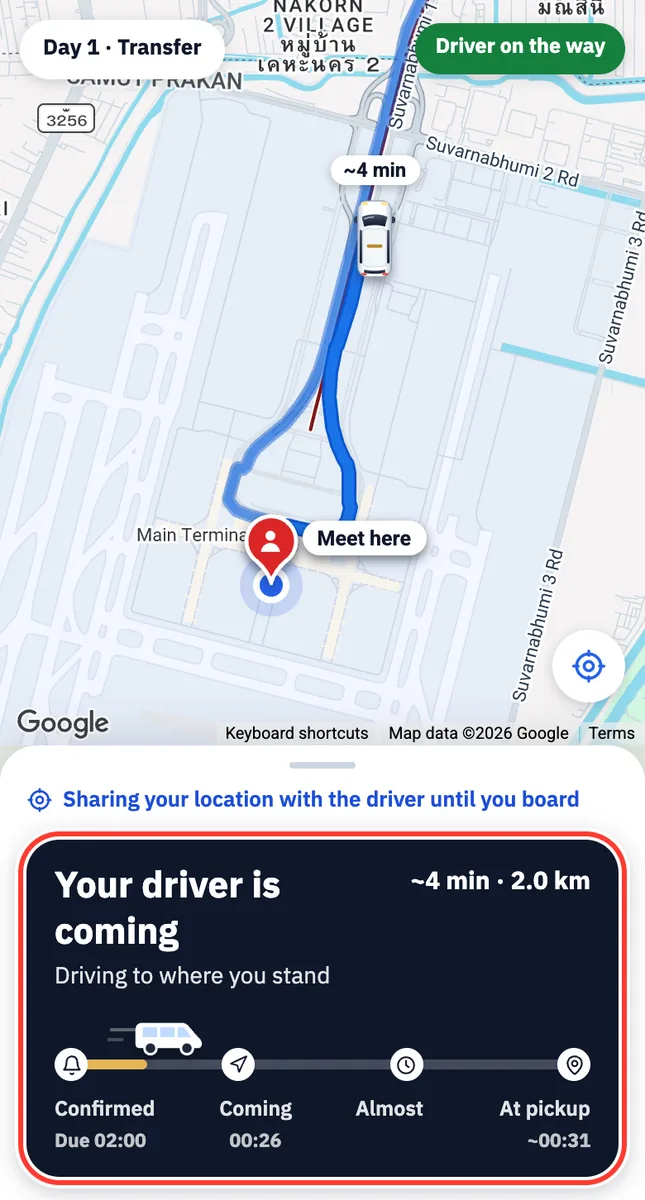
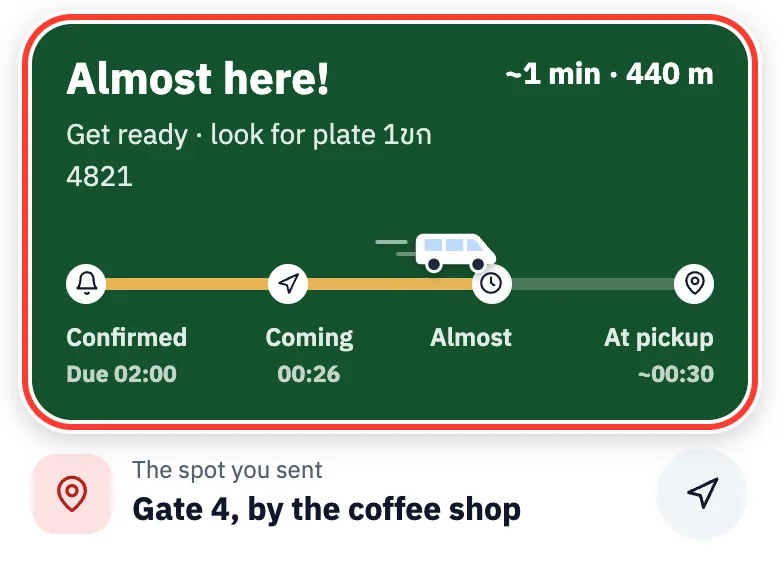
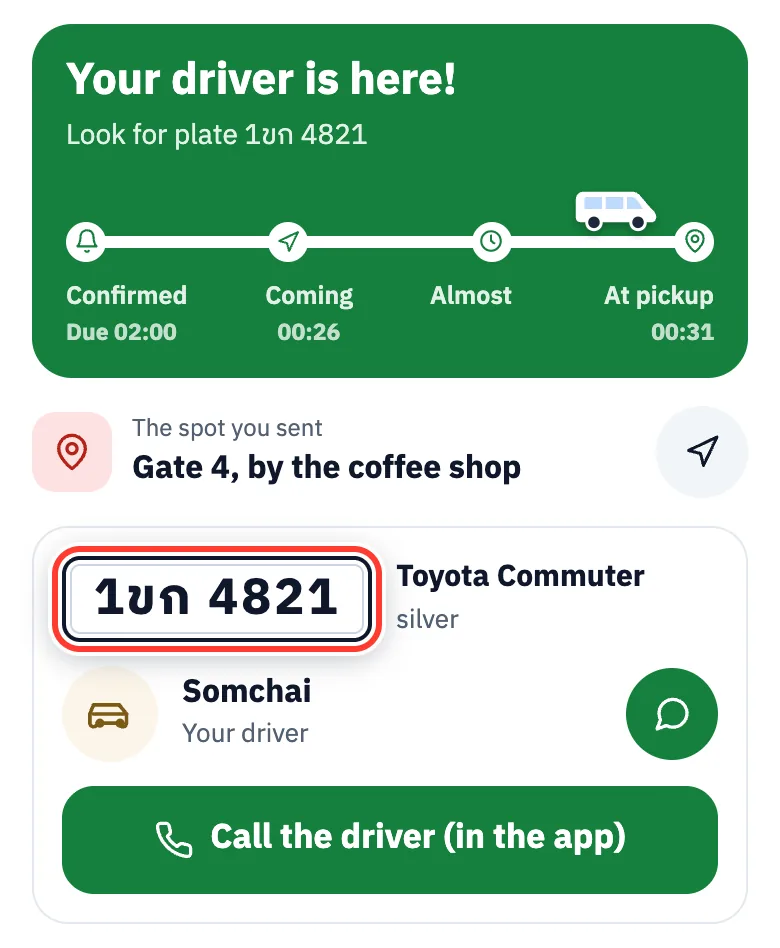
Your driver is here: check the plate on the screen and look for that van.
Before you get in, tell the driver your 4-digit pickup code.
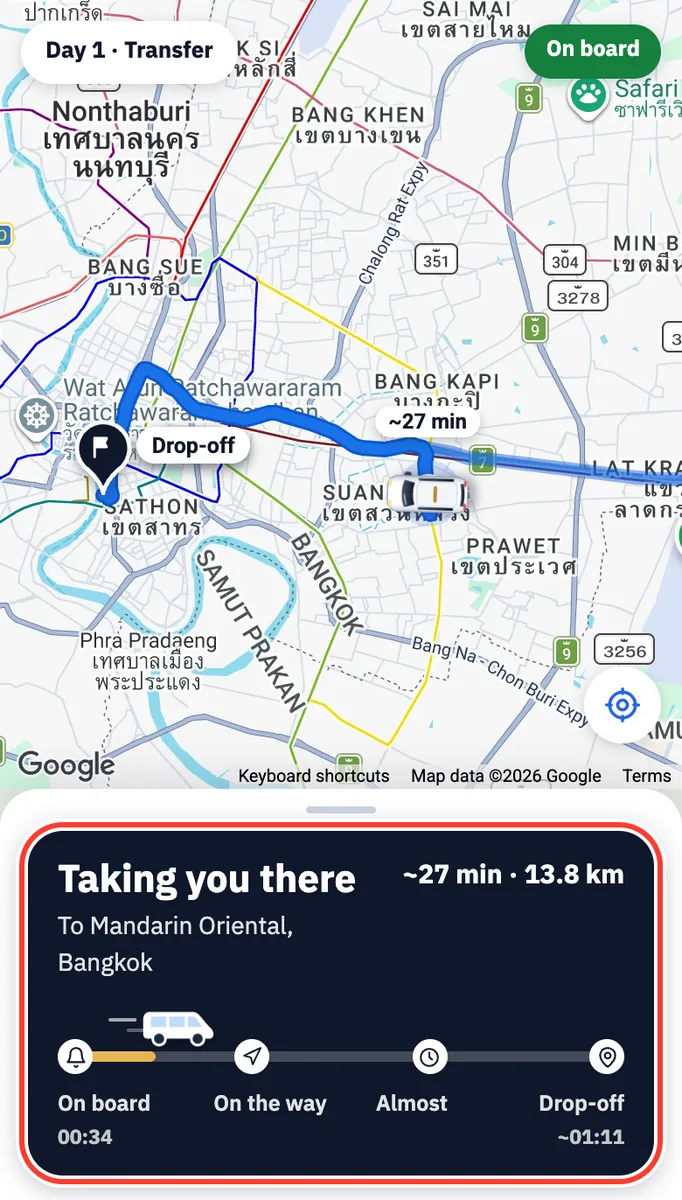
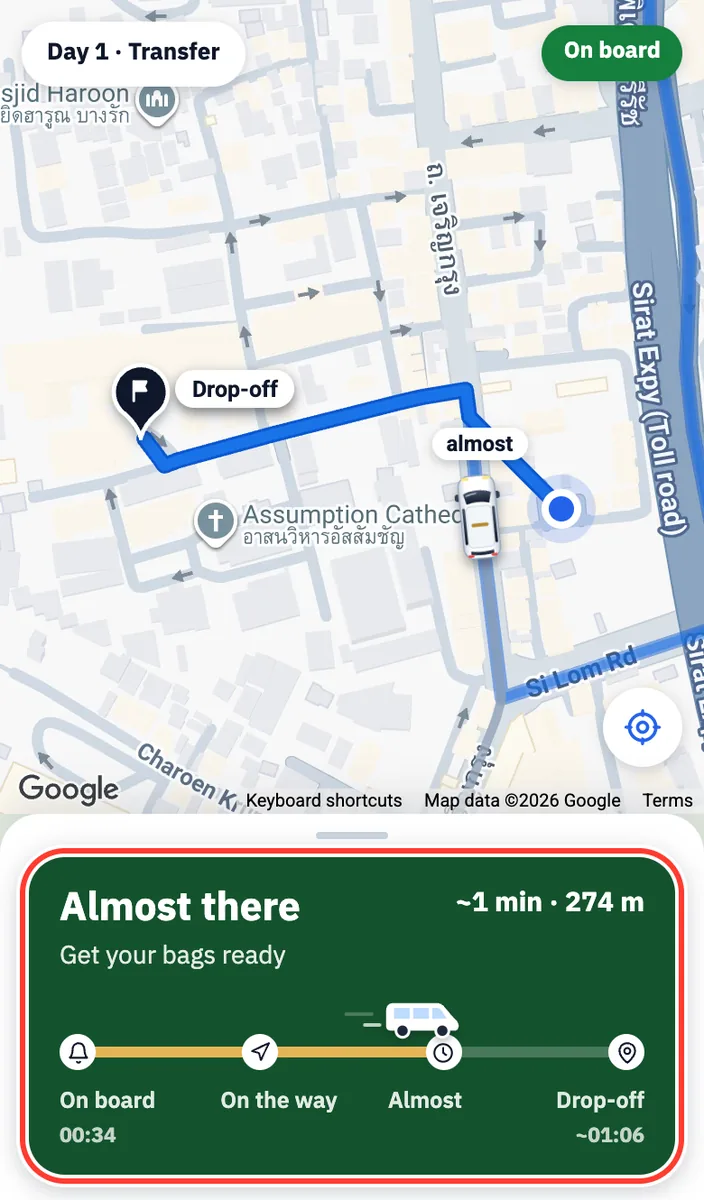
On the way, the app shows the time to your destination and tells you when to get your bags ready.
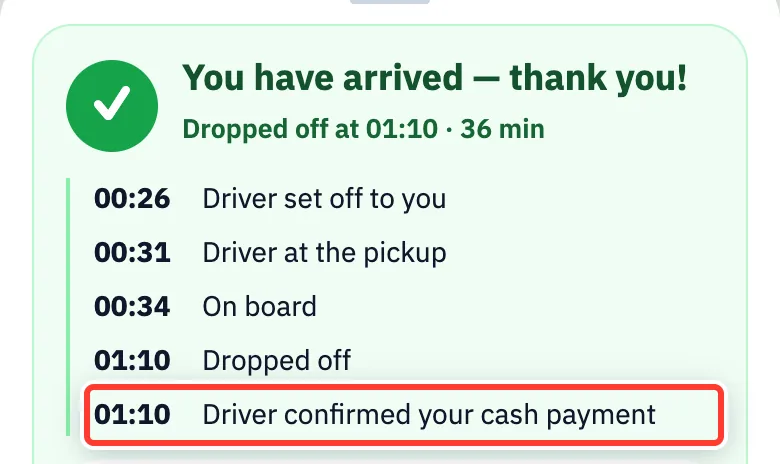
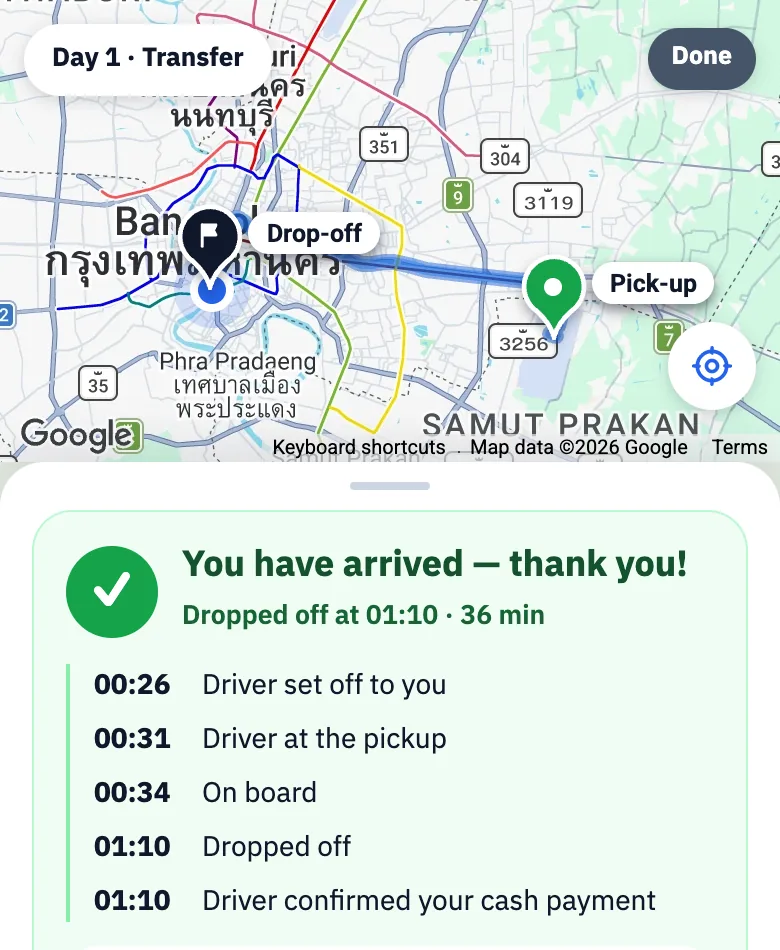
Paid a deposit? Pay the rest in cash (Thai baht) to the driver when you arrive. Once the driver confirms, the app shows Driver confirmed your cash payment.
Chat with and call your driver
For: Everyone on the day, especially visitors from abroad
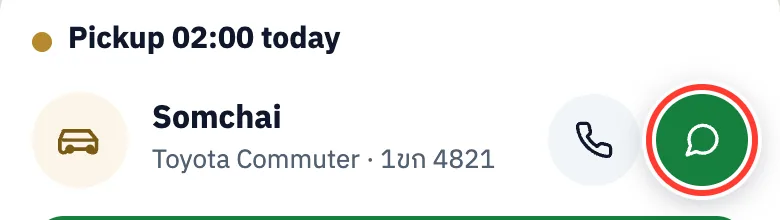
Tap the green chat icon next to the driver’s name (it appears once our team has assigned your driver).
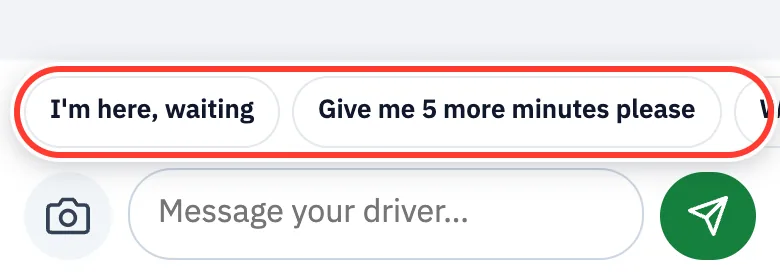
Tap a quick message such as I’m here, waiting, Give me 5 more minutes please or Where are you?, or type your own. The camera button attaches a photo.
Tap the green send arrow: only then does the message reach the driver.
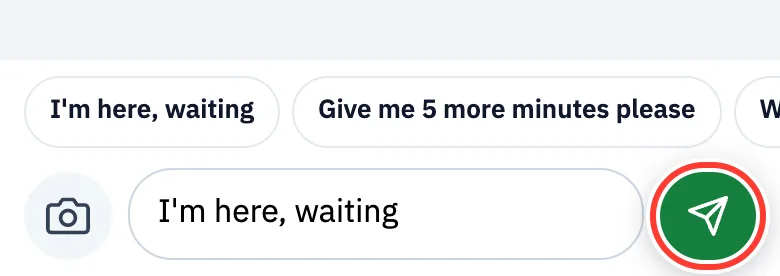
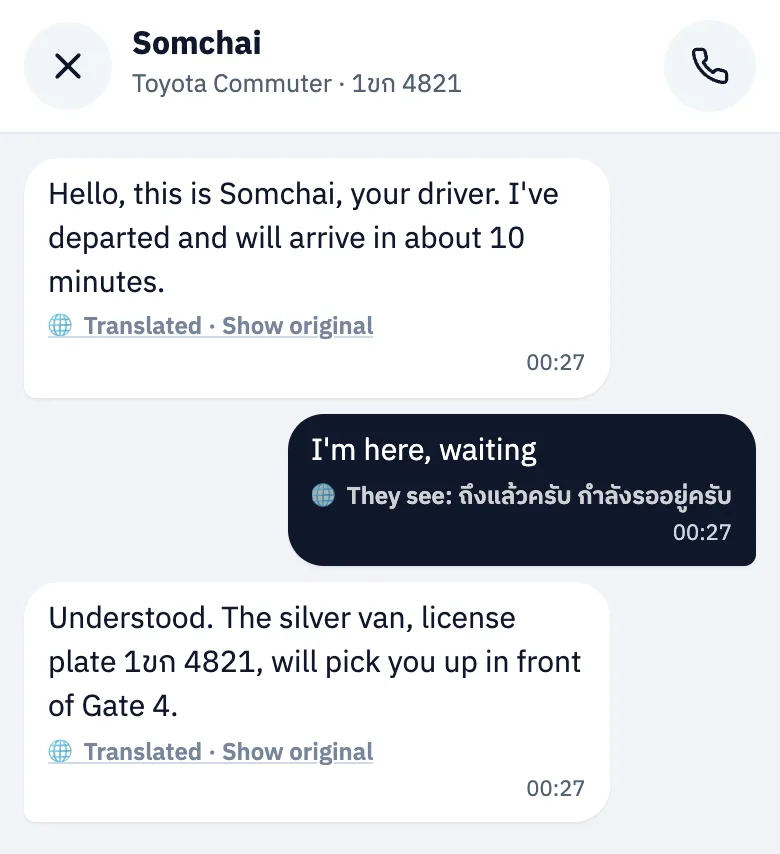
Write in your own language: your messages are translated into Thai for the driver, and the driver’s replies are translated for you (🌐 Translated · Show original).
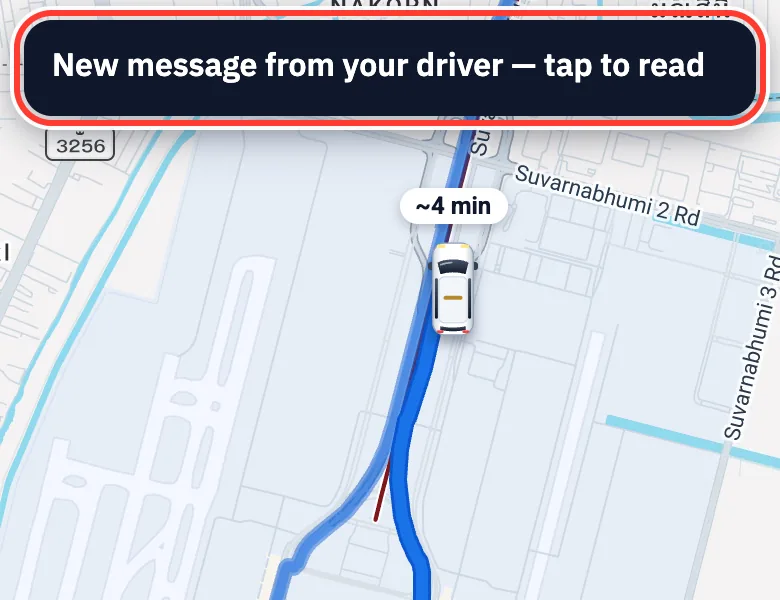
When the driver writes, you see New message from your driver — tap to read (while the trip page is open).
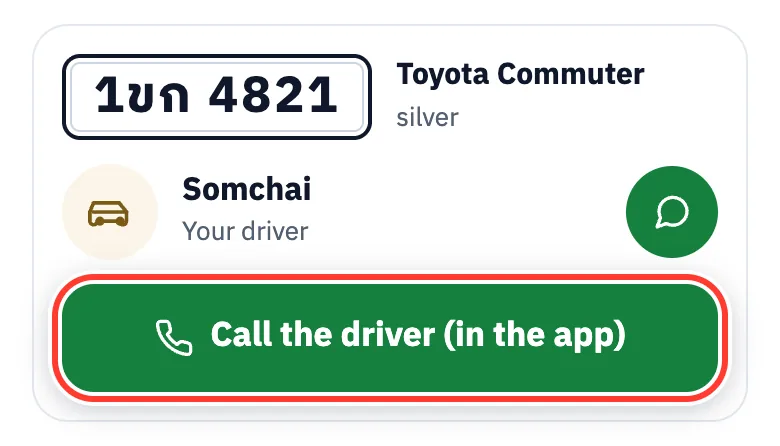
To call, tap Call the driver (in the app) or the phone icon. It is an internet call inside the app, not a phone line, so there are no international call charges, and neither side sees the other’s number. The first time, allow the microphone.
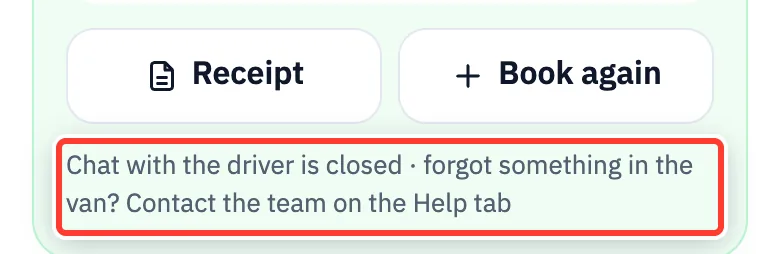
Chat with the driver closes after the drop-off. For anything else, use the Help tab.
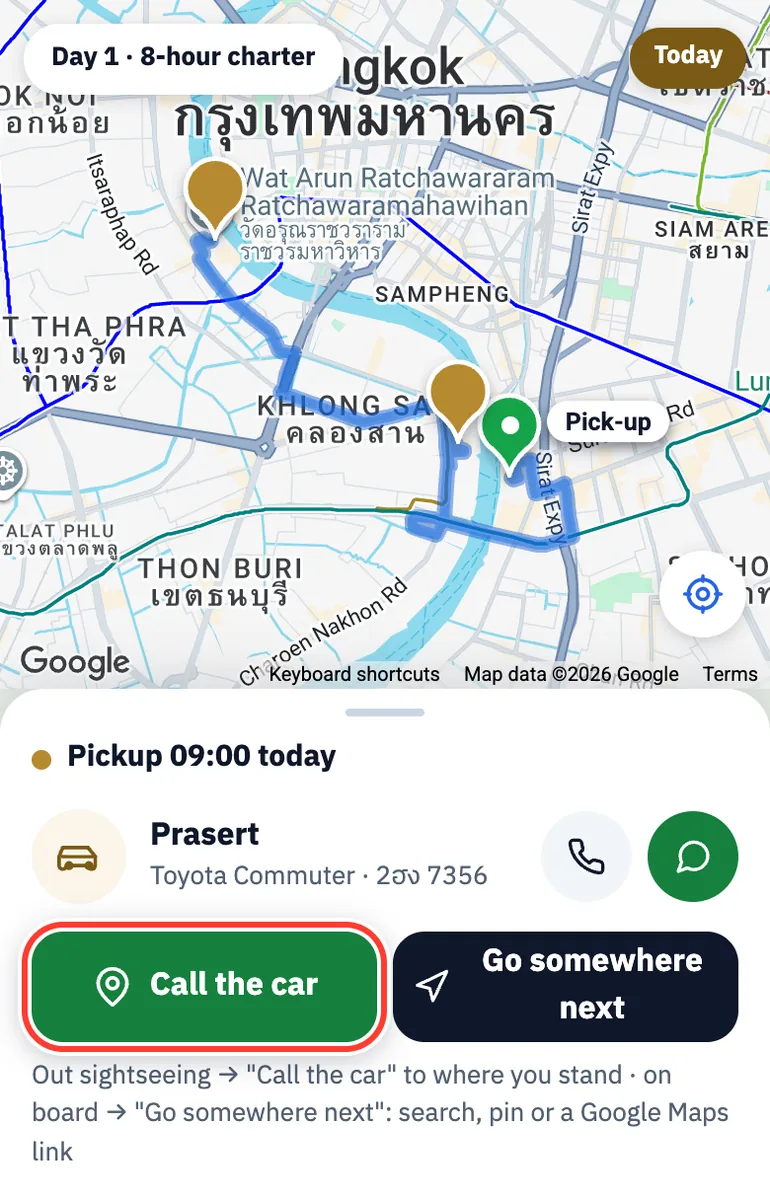
Hourly charter day: call the car, go somewhere next, pay extras
For: Hourly charter customers
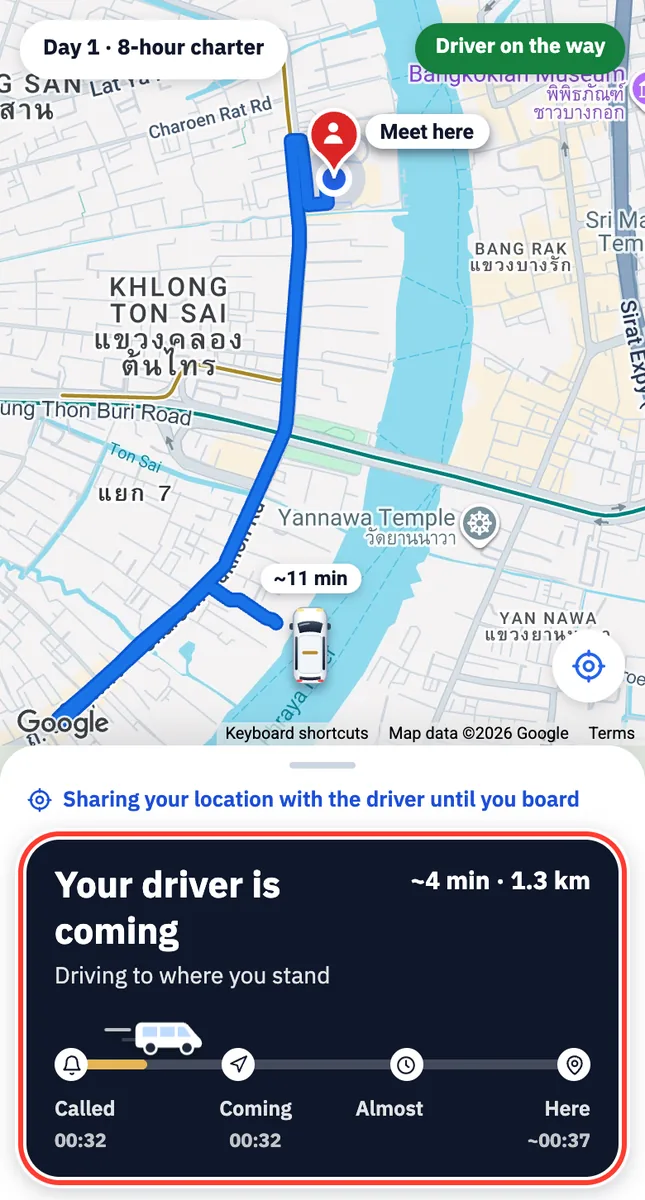
Out sightseeing and ready to go? Tap Call the car.
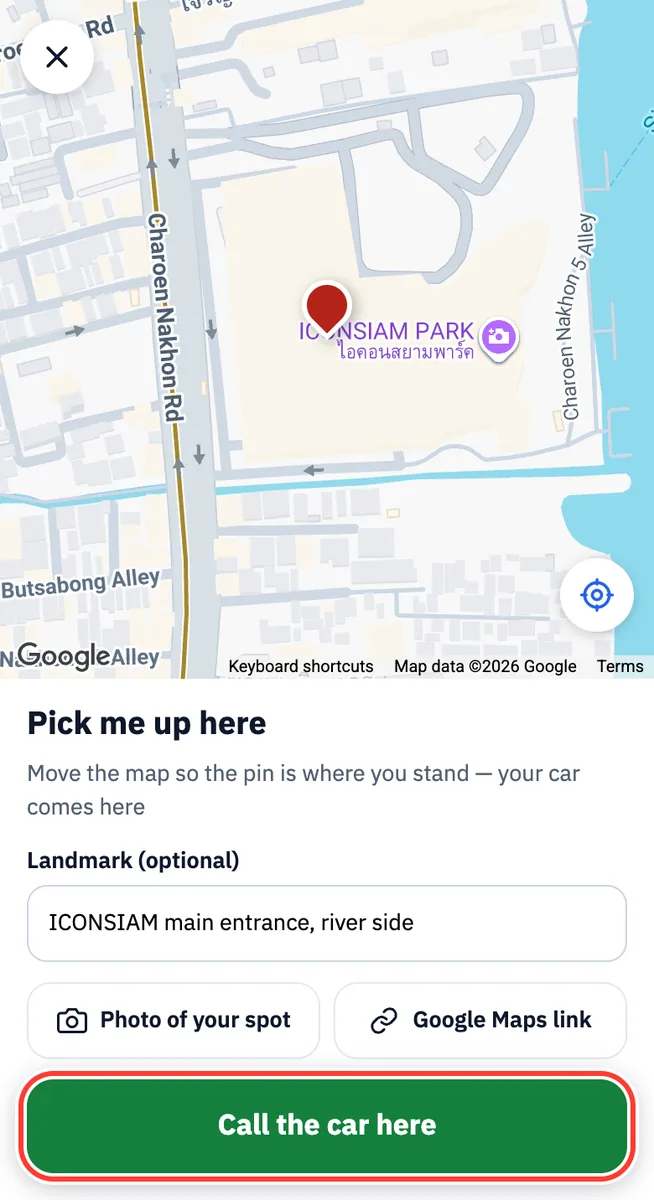
Move the map so the pin is where you stand, add a landmark or a photo, then tap Call the car here.
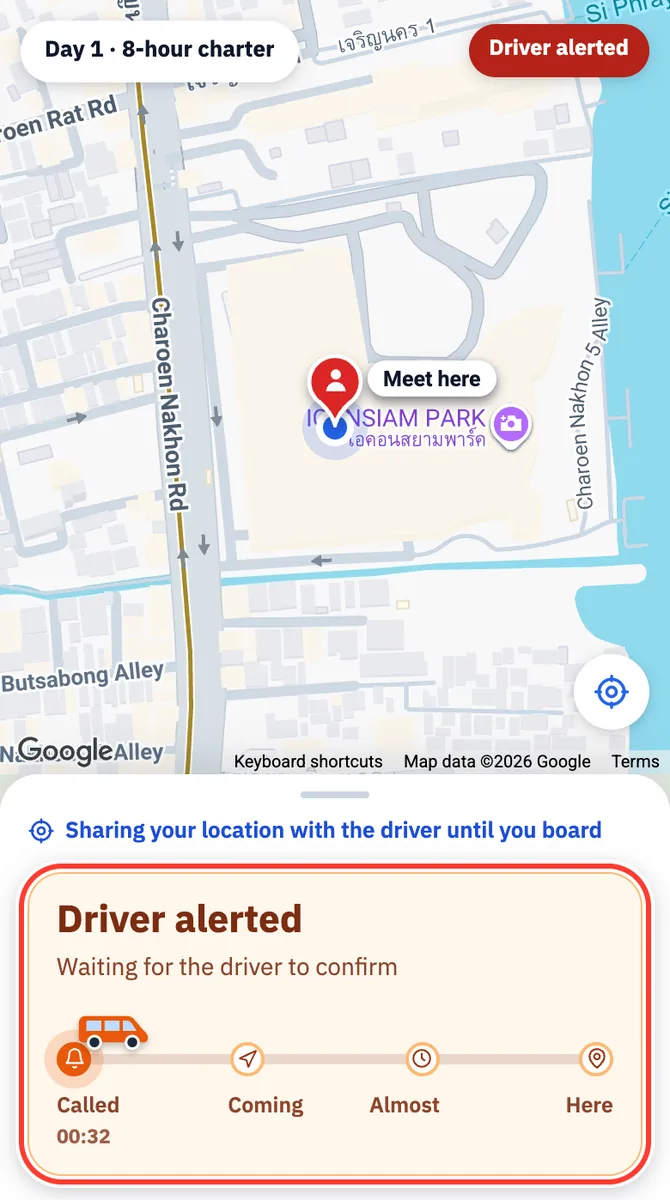
Wait for the driver to confirm, then watch the car coming on the map. If nobody confirms within 3 minutes, our team calls the driver.
On board and want to go somewhere new? Tap Go somewhere next, then search, drop a pin or paste a Google Maps link.
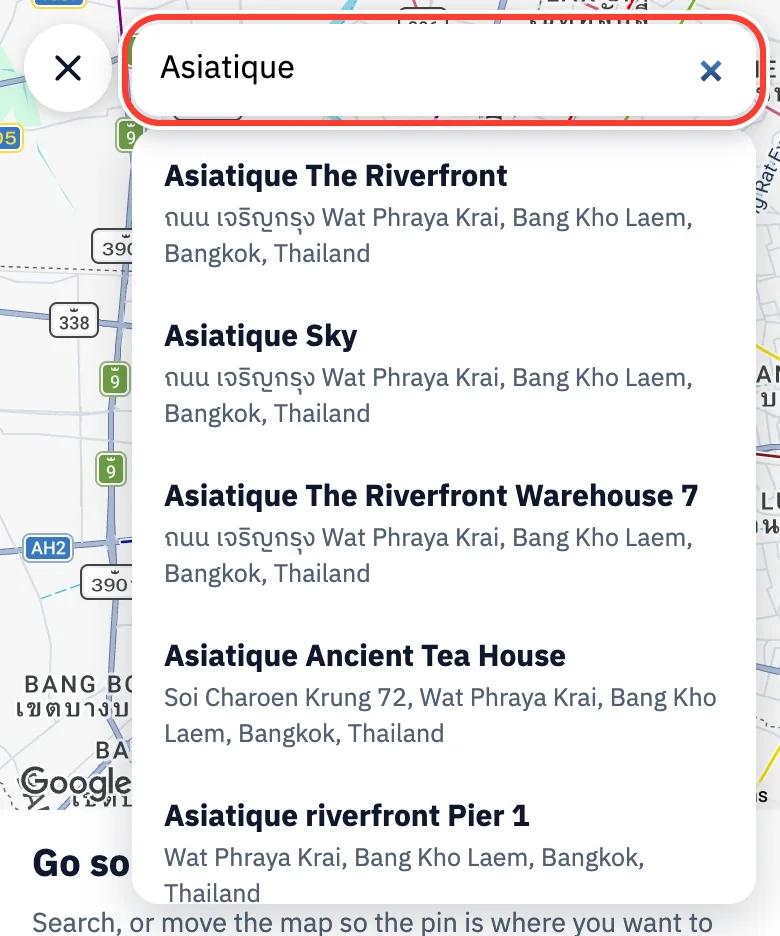
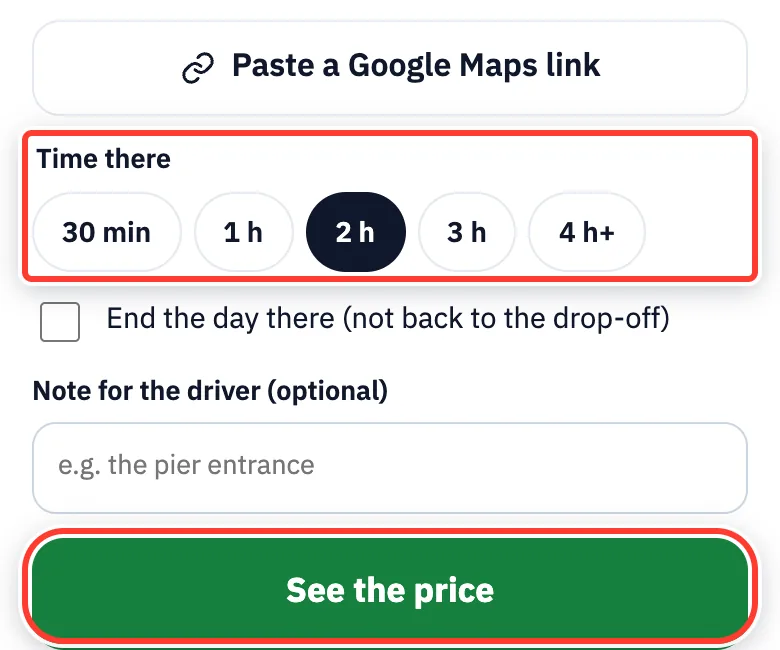
Choose Time there, tick End the day there if you won’t go back, then tap See the price.
No extra cost? Tap Send to the driver.
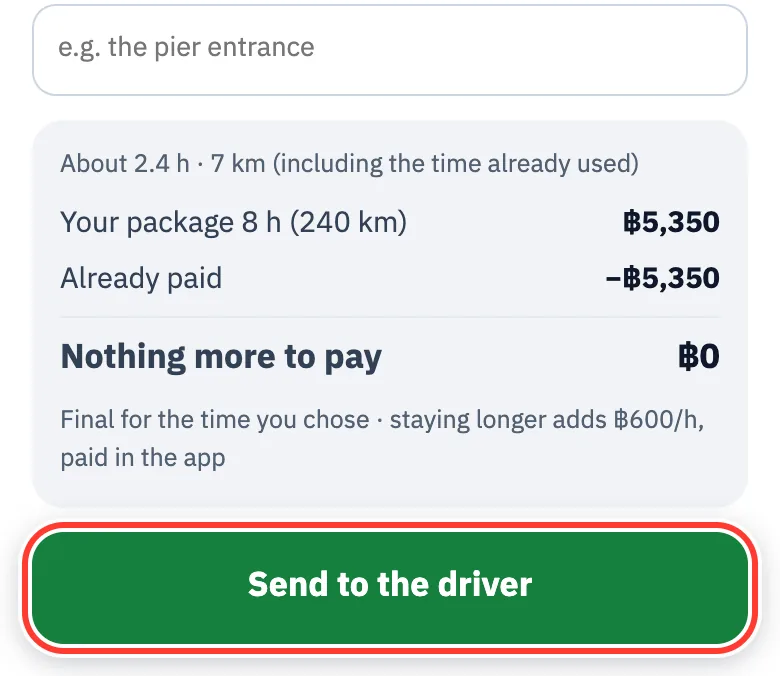
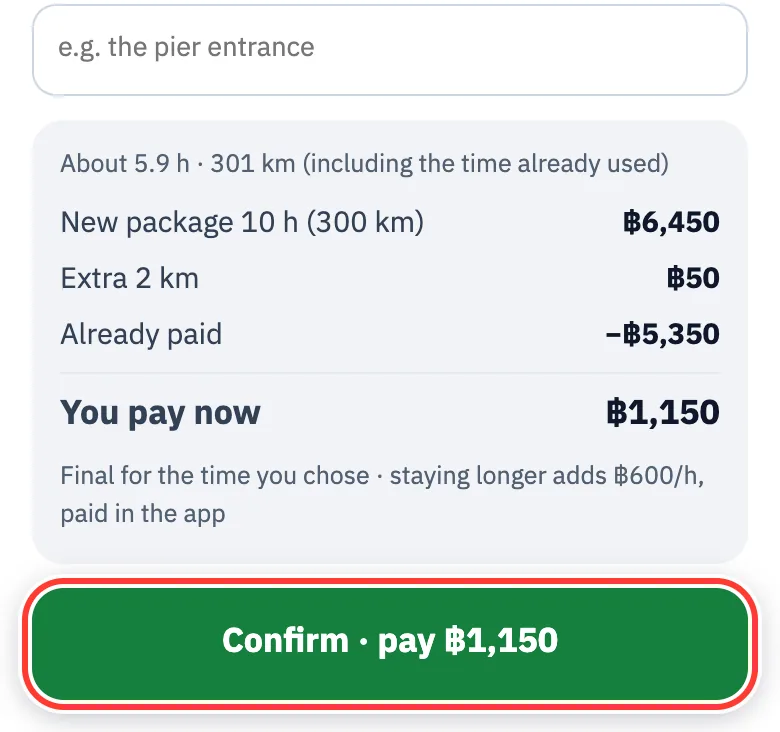
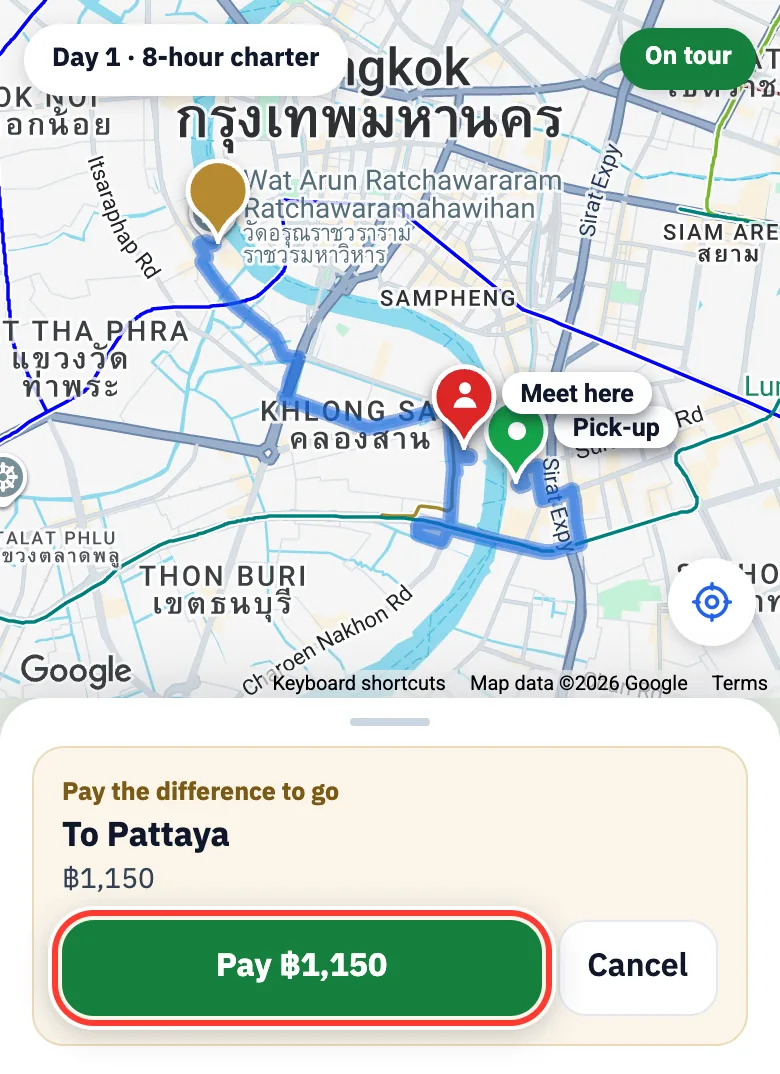
Extra to pay? Tap Confirm · pay ฿… and pay by PromptPay QR or card. The driver never collects this money.
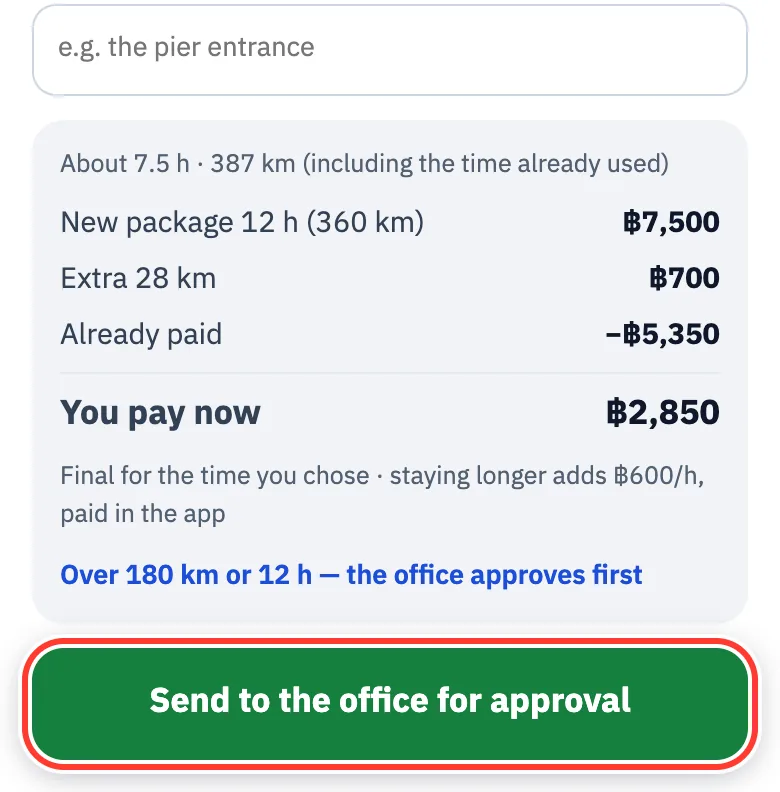
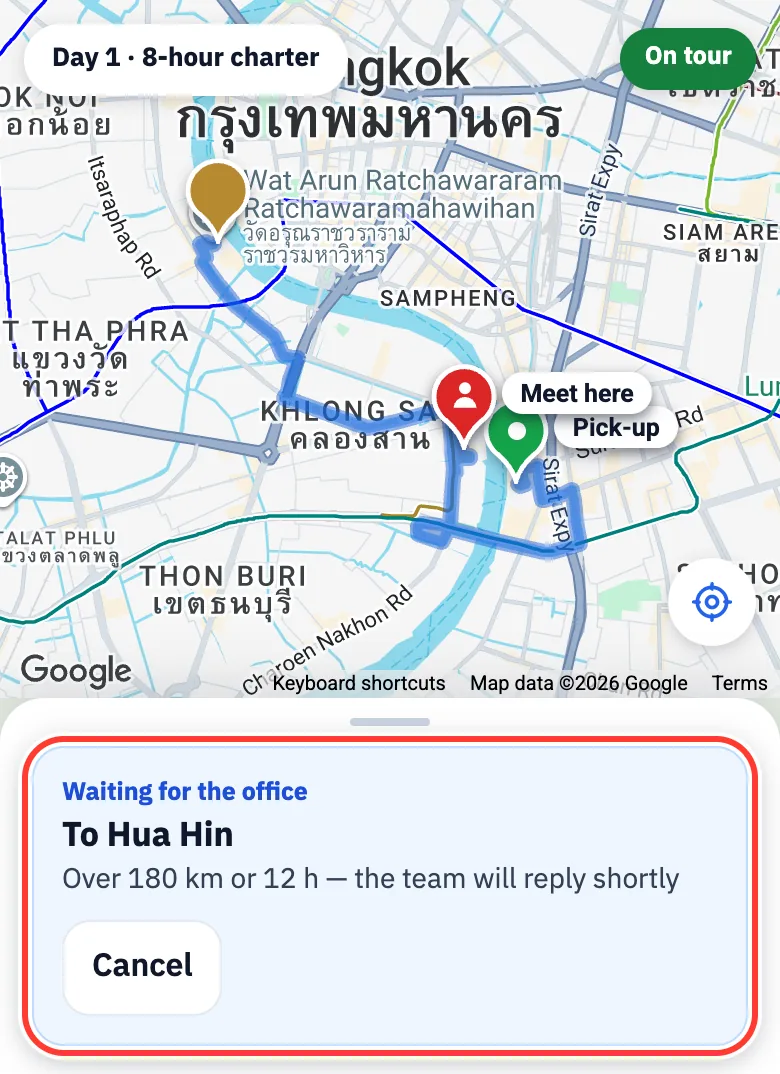
Further than 180 km or more than 12 hours in total? Tap Send to the office for approval, then wait for the Waiting for the office card on the Trip tab.
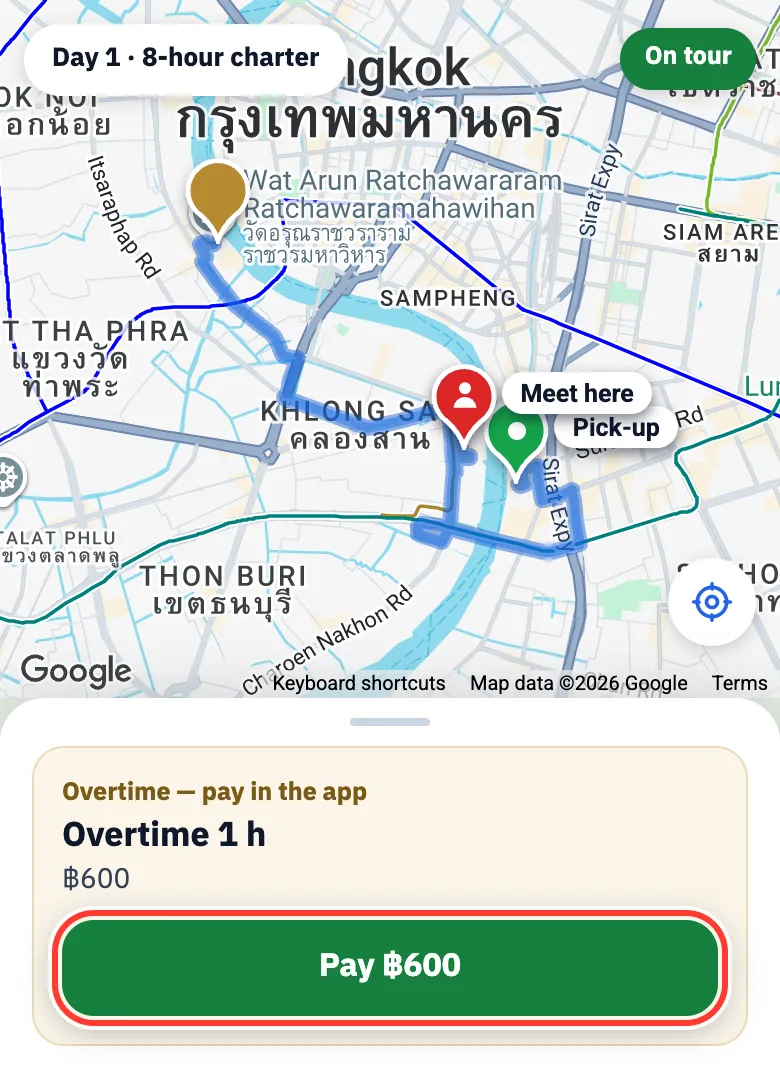
Stayed longer than booked? Our team sends the overtime charge to the app. Tap Pay ฿… on the Trip tab.
Changes, cancelling and after the trip
Change the pickup time yourself
For: When your flight or plans move a little
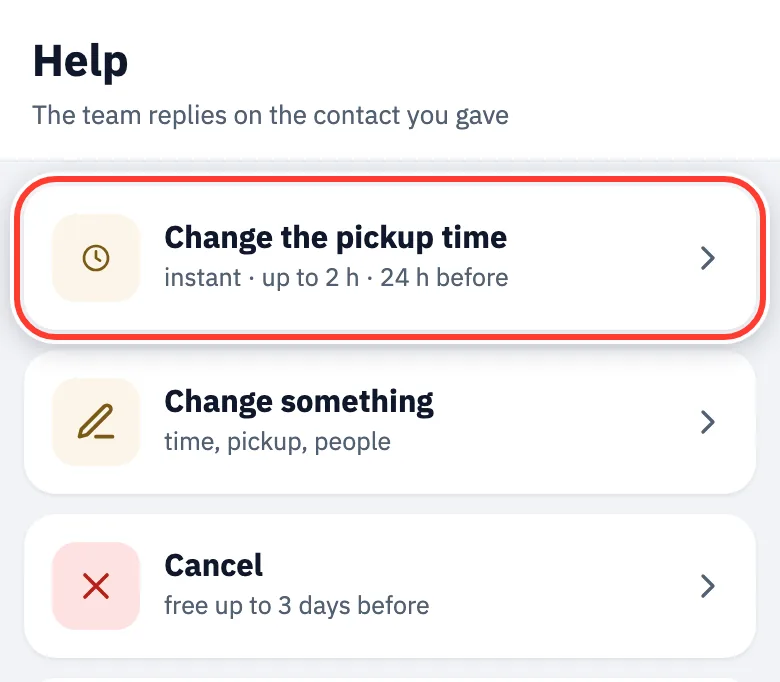
Go to the Help tab and tap Change the pickup time.
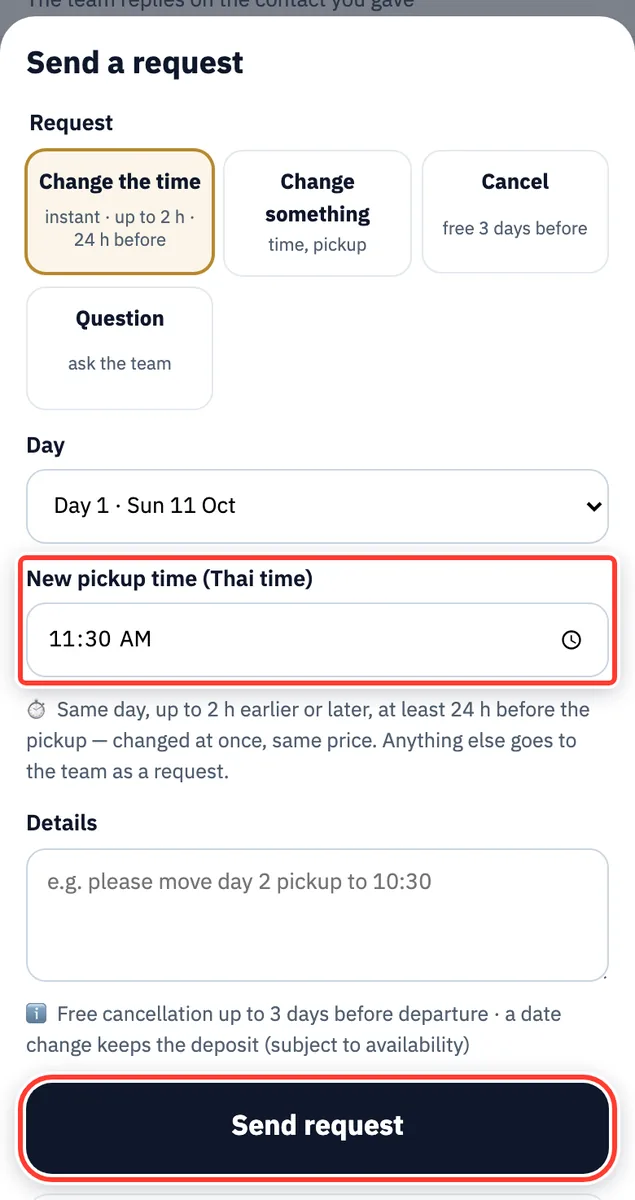
Choose the day, set the New pickup time (Thai time) and tap Send request.
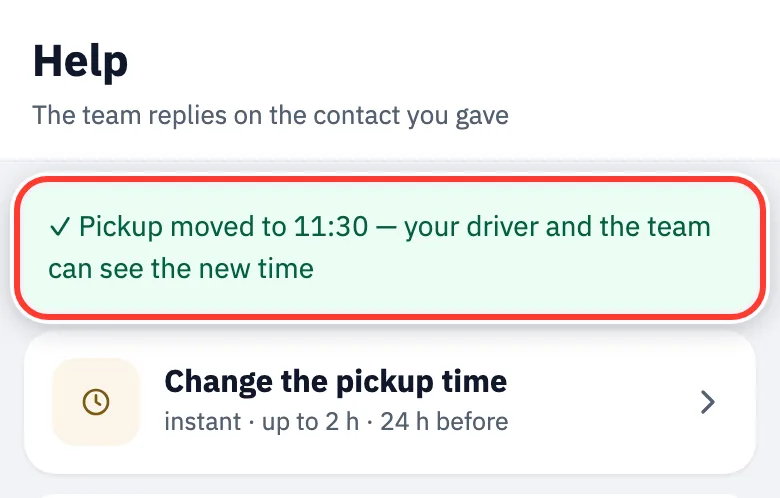
Within the rules (same day, up to 2 hours, at least 24 hours before pickup) the time changes at once, at the same price, and the driver sees the new time.
Outside the rules, the app sends it to our team as a request and tells you why it could not change it.
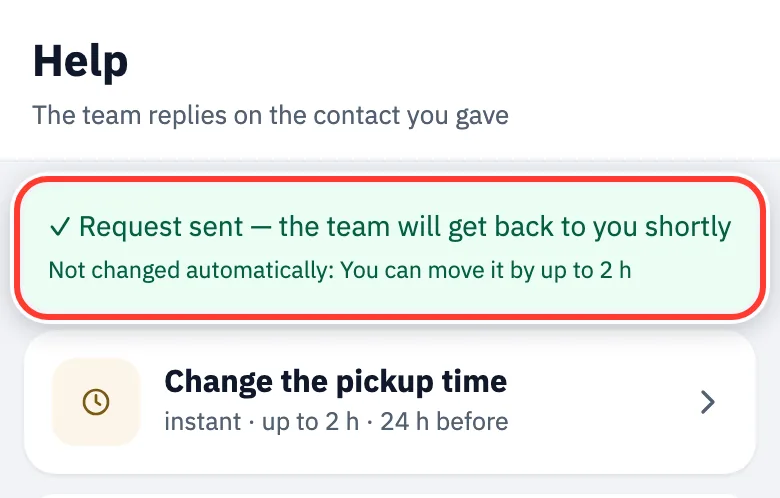
Less than 24 hours before pickup you can’t change it yourself: send a request and our team will help, or message LINE / call +66 84 709 3719.
↑ Back to contentsOther changes, cancelling, asking the team
For: Anyone who needs a change after paying
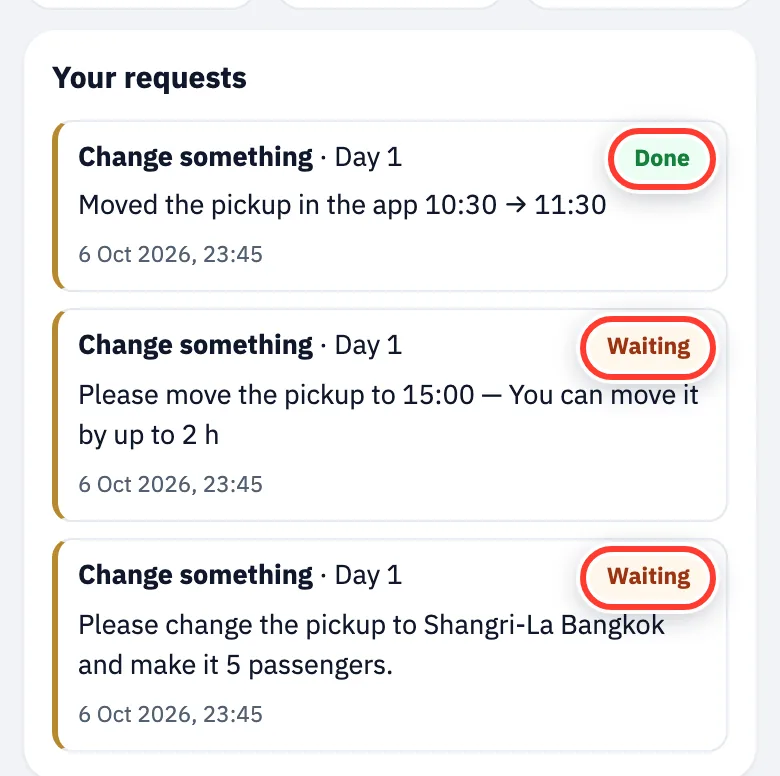
On the Help tab, tap Change something (time, pickup, people).
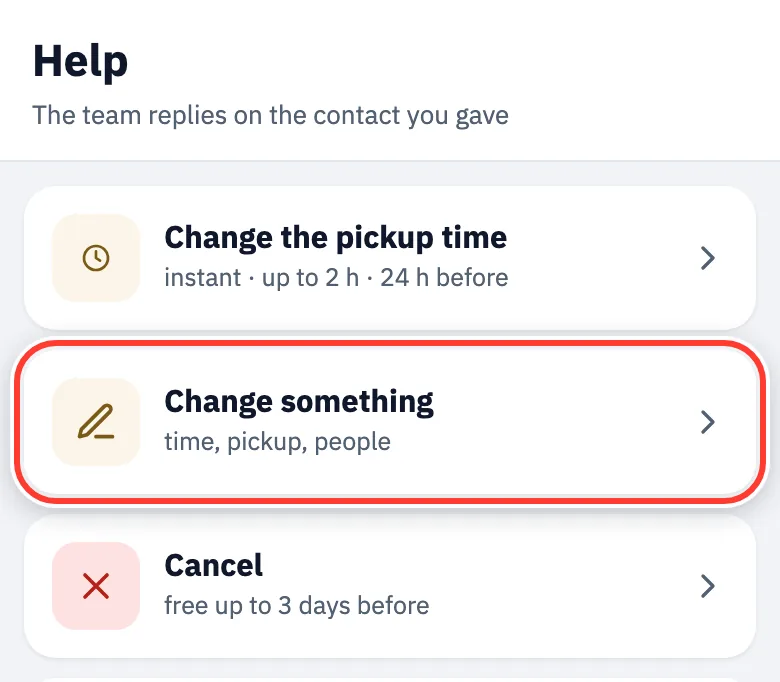
Choose the day, write the details and tap Send request. We reply on the contact you gave.
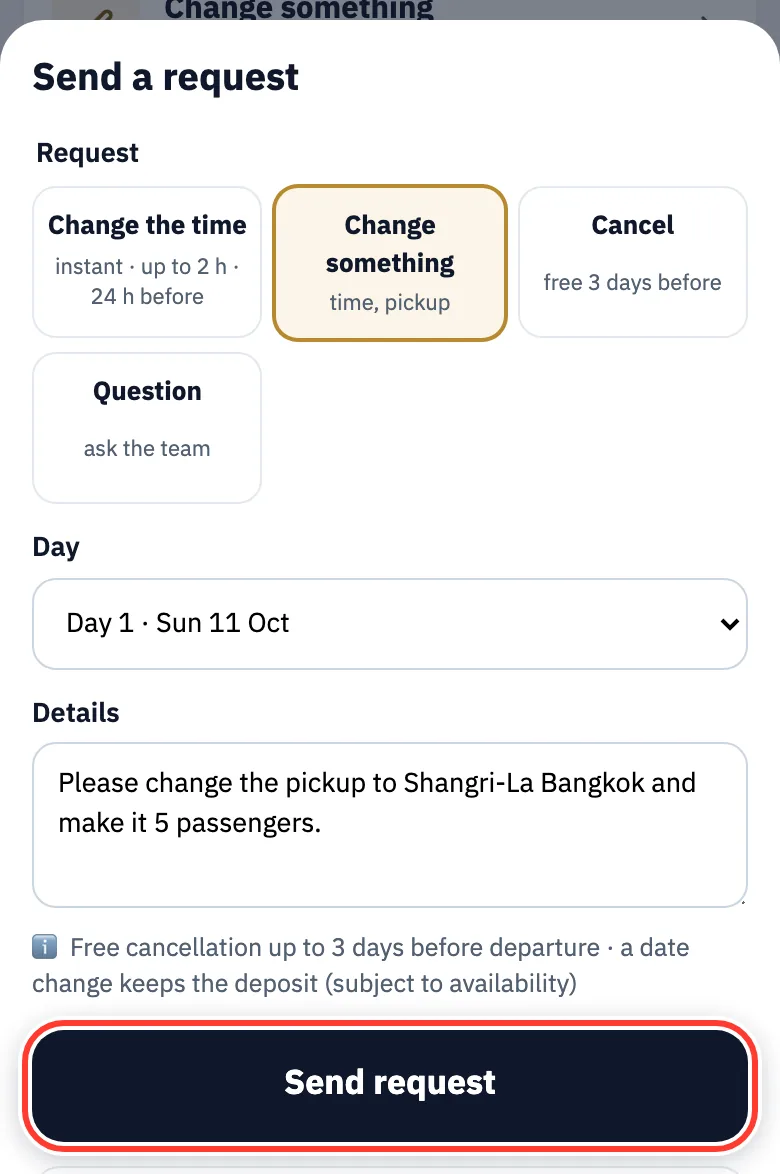
To cancel, tap Cancel. Cancelling is free at least 3 days before travel. Moving the date keeps your deposit (subject to availability).
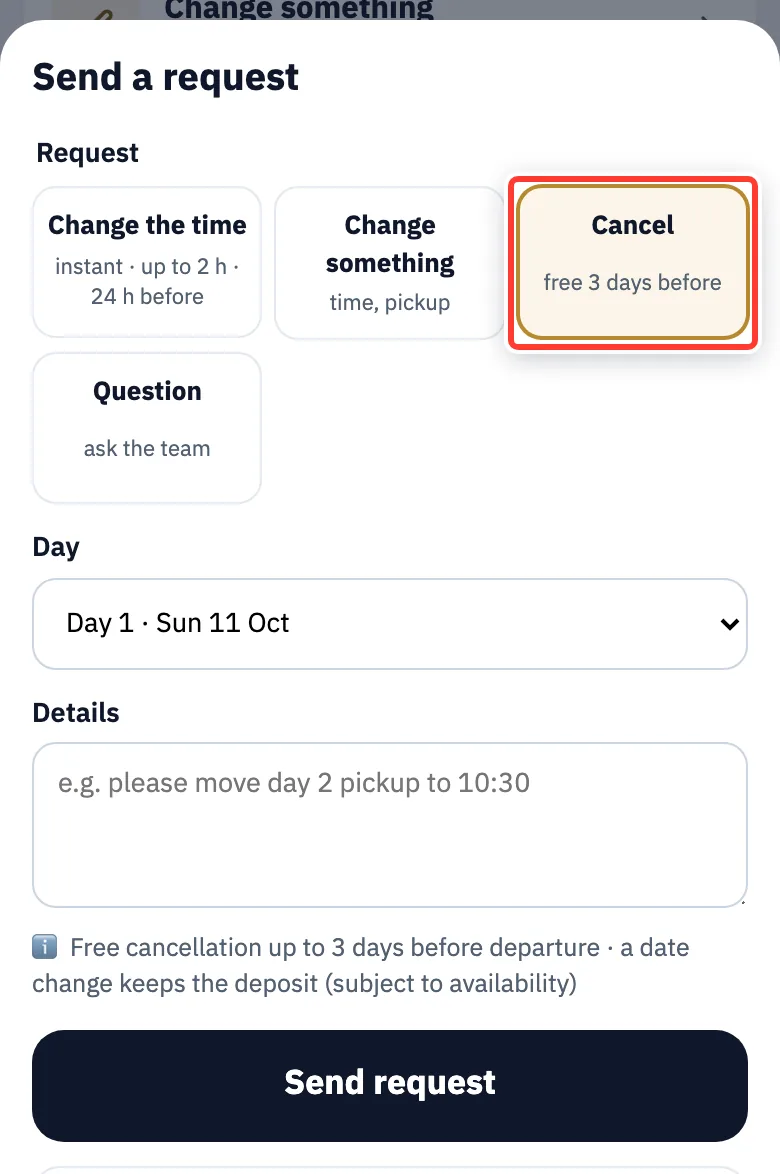
Requests you sent appear under Your requests, marked Waiting or Done.
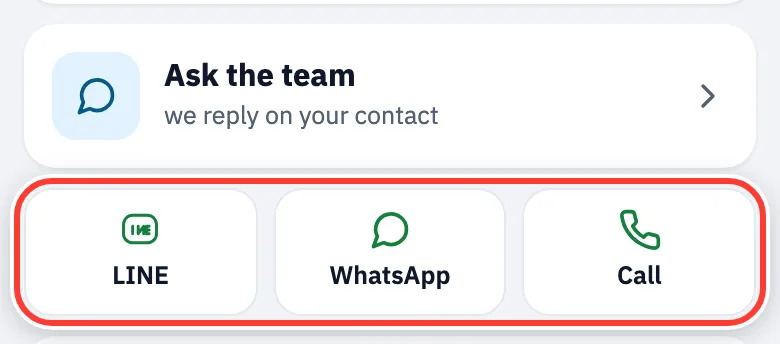
Urgent? Tap LINE, WhatsApp or Call (+66 84 709 3719).
After the trip
For: Everyone after the drop-off
At the end you see You have arrived — thank you! with the time of each step.
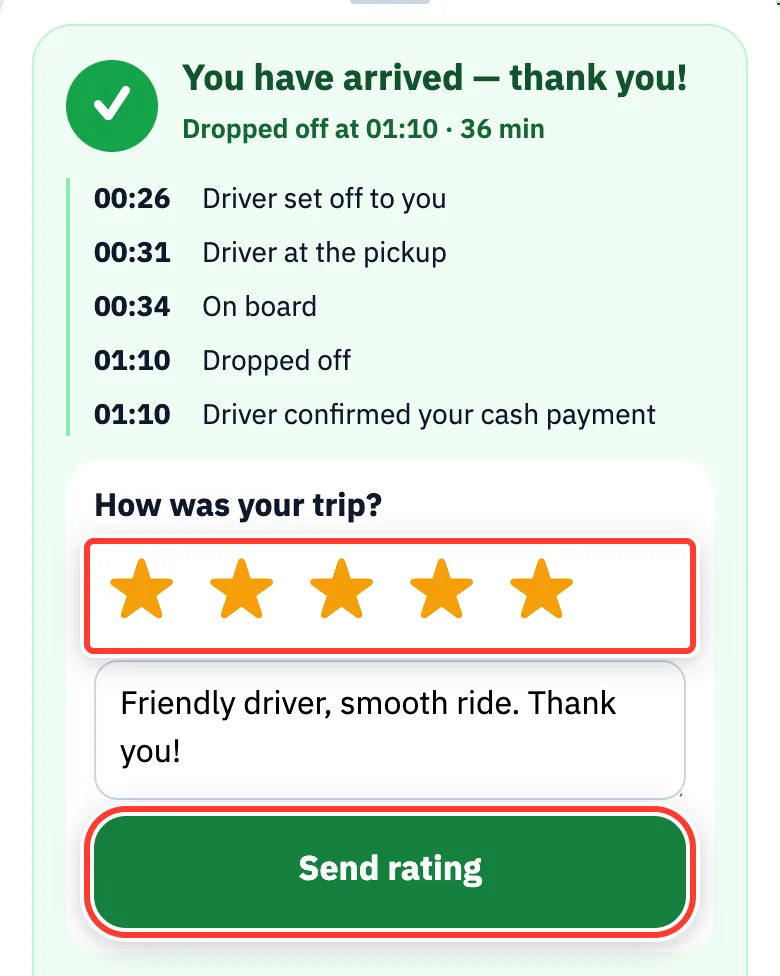
Give 1–5 stars, add a note if you like, and tap Send rating.
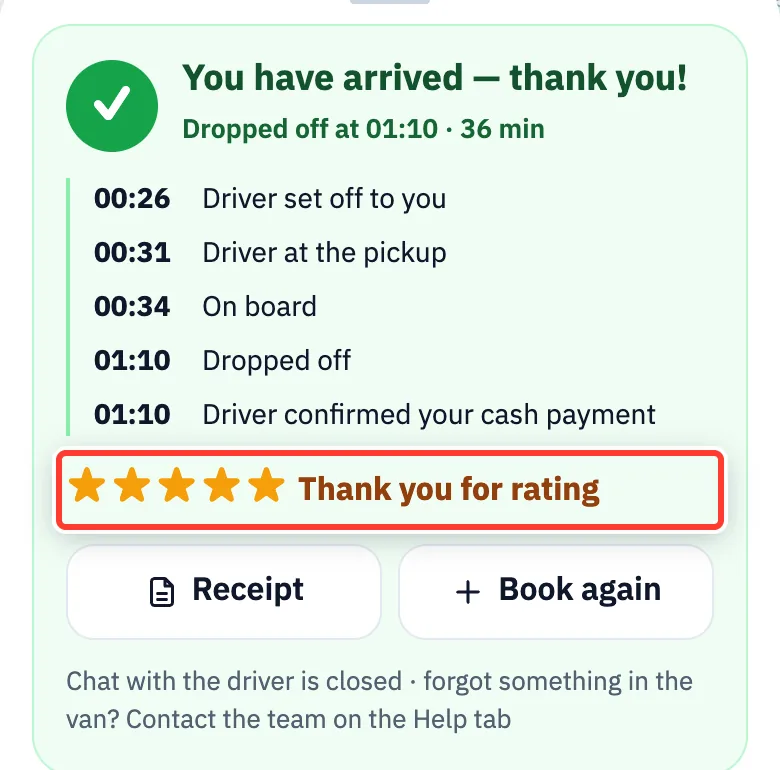
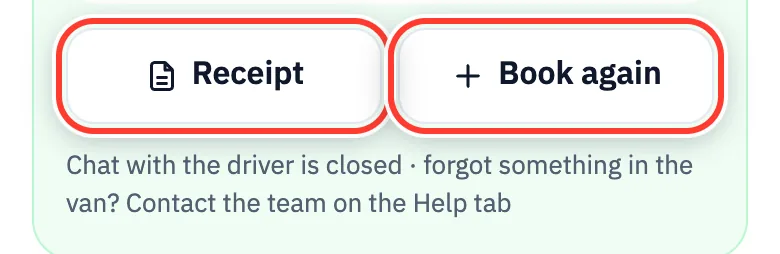
Tap Receipt, then PDF confirmation to download or print it. If you paid by card or QR and gave an email, Stripe emails you a separate receipt.
Left something in the van? Contact us on the Help tab. Next trip? Tap Book again.
Frequently asked questions
Do I need to sign up or download an app?
How can I pay?
Is paying in the app safe?
What does the price include?
Can I cancel or change the date?
Will the driver wait with a name sign at the airport?
My flight is late or immigration is slow. Do I need to do anything?
I have no internet when I land. What do I do?
What is the pickup code?
I closed the app. How do I find my booking?
Can my family see the trip too?
Can I book for today?
What if we have too many people or bags for one van?
Which languages does the app use?
Ready to book?
Choose your route and van, pay the deposit and get your pickup code straight away. Questions? Our team answers 24 hours a day.
Pay online · confirmed instantly