
Part 1 of 7
Part 1: Open your trip link and see your trip
How to open your Kingtocar trip link and read your trip: date, time, van, pickup and drop-off, what is paid, the 4-digit code, your booking papers and the Help tab. No sign-up, no app to install.
Key moments
- Got your trip link from Kingtocar? Tap it to open. No sign-up, no app to install.
- On the map at the top, the green pin is your pick-up, and the black flag is your drop-off.
- The label under the map shows your travel day.
- This text shows your route and the pickup time.
- The grey box is your van. The driver's name and plate appear here before your trip.
- Scroll down. This box shows your pick-up and drop-off points.
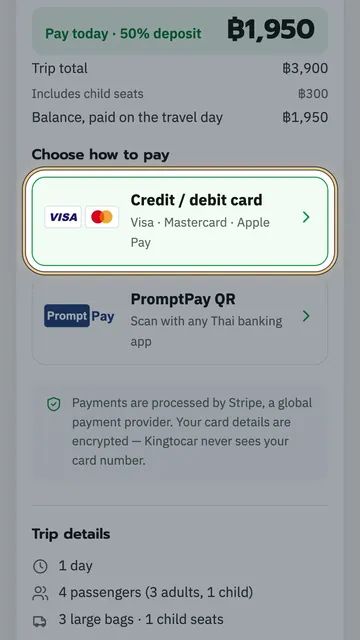
- In the price box, the top line is the deposit you paid.
- The second line is the cash you pay the driver on the day.
- The bottom line is the trip total.
- The black box is your four-digit pickup code. Tell it to the driver before you get in.
- The green button, I'm at the pickup point, is what you tap when you reach the pickup.
- Want to open your trip faster next time? Tap the black button, Install.
- Follow these three steps, and the Kingtocar icon goes on your home screen.
- Then tap Got it.
- At the bottom, tap Booking documents and payment.
- At the top is your booking number.
- This row has the PDF confirmation and Add to calendar.
- Share trip sends it to the people travelling with you.
- Close it with the X, top left.
- Bottom right, the Help tab.
- The clock button changes your pickup time.
- These three buttons let you change something, cancel, or ask the team.
- Bottom left, the Trip tab takes you back to your trip.
- Keep this link. You can open it any time.
 1:13
1:13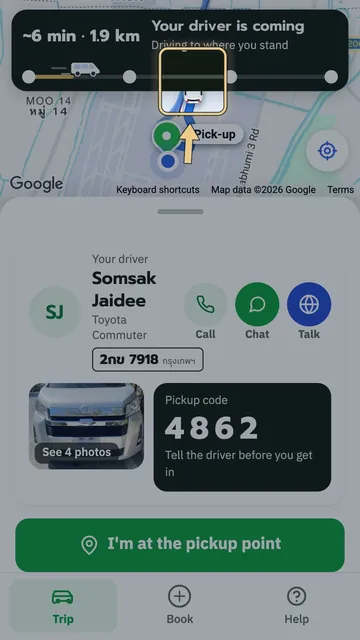 1:17
1:17 1:21
1:21 0:48
0:48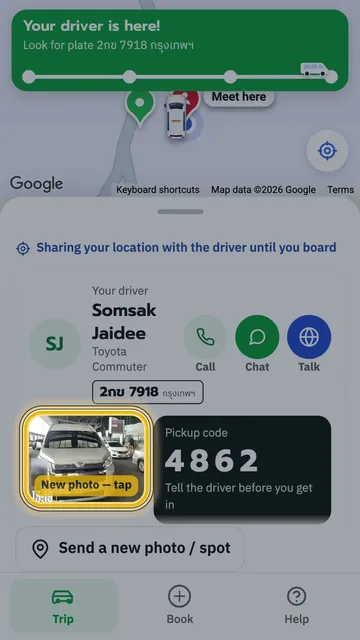 1:18
1:18 1:22
1:22