
Part 4 of 7
Part 4: Chat with and call your driver
Chat with your driver on the trip page — quick replies, your own words, photos, every message translated between your language and Thai — and call through the app without sharing phone numbers.
Key moments
- To message your driver, tap the green Chat button.
- At the top are your driver's name and van.
- These quick replies at the bottom send with one tap.
- Or type your own message here.
- Then tap Send.
- Your message is on the right, in green. Under it, you see what the driver reads in Thai.
- Your driver writes in Thai, and you read it in English, translated automatically.
- The button at the bottom left sends a photo.
- Close the chat with the X, top left.
- With the chat closed, a new message pops up at the top, and your phone tells you.
- The red number on the Chat button means a new message.
- To call, tap the phone button. The call goes through the app.
- It's an in-app call. No phone numbers are needed, and neither of you sees the other's number.
- Your driver answers, and the timer starts. Just talk.
- The left button mutes your microphone.
- When you're done, tap the red button to hang up.
- Then tap Close to go back to your trip.
- Chat and calls work until you're dropped off.
 1:46
1:46 1:13
1:13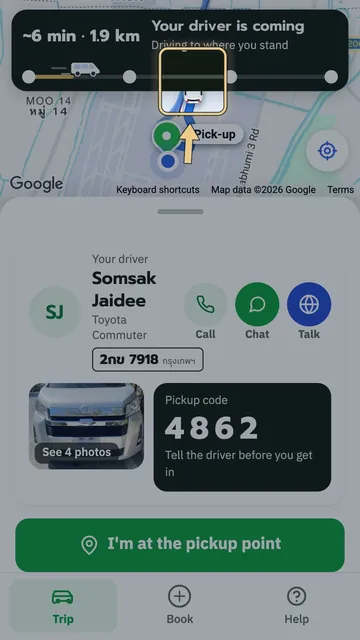 1:17
1:17 0:48
0:48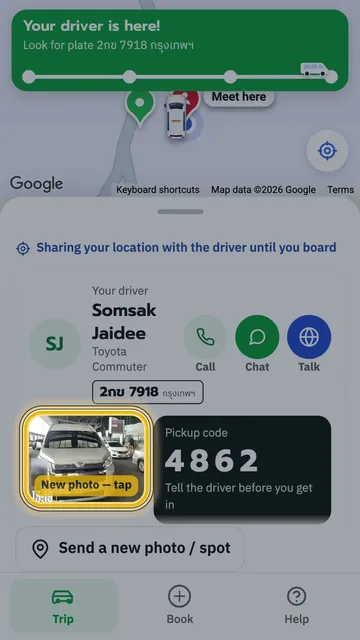 1:18
1:18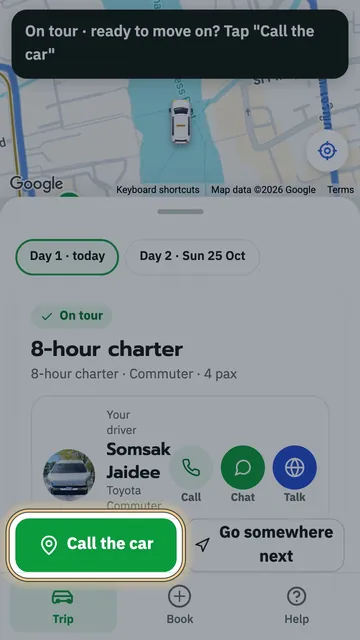 1:22
1:22